One dashboard for a freelancer’s work, time & money.
Designing a calmer way for independent professionals to manage clients, projects, hours and cash flow — without switching between disconnected tools.
PROJECTMelo
MY ROLEProduct Designer — Research, UX, UI & design system
PRODUCTResponsive SaaS dashboard
STATUSConcept case study · Prototype tested in Maze
MELO / FREELANCER WORKSPACE
Less admin. More creating.
work smarter
PROJECT AT A GLANCE
Freelancers are a one-person company.
Melo is a SaaS workspace that connects project management, time tracking, invoicing and AI-based productivity guidance. Freelancers often manage several clients while also handling admin, billing and follow-ups. Melo brings those activities into one place so more of the week can be spent on actual work.
02 / OPPORTUNITY
Tools exist. The connections don’t.
Survey responses pointed to a fragmented workflow: spreadsheets for projects, calendars for deadlines and Word or Excel for invoices. The challenge was to give freelancers one clear picture of their work, time and income without creating more admin.
How might we give freelancers a single, simple view of their work, time and income, without adding more admin?
03 / RESEARCH
What 15 freelancers told me.
I surveyed 15 freelancers across design, development and other creative fields. These findings are directional because of the small sample, but they gave me a useful starting point for prioritising features.
15
freelancers surveyed
87%
struggle to manage multiple projects
53%
create invoices manually
93%
want AI productivity suggestions
INSIGHT 01
Disconnected tools create friction.
Freelancers are already using project tools, calendars and invoice templates. The pain is the gap between them.
INSIGHT 02
Time is the hidden cost.
Two-thirds struggle to track time, which means billable work is at risk of slipping through unnoticed.
INSIGHT 03
Invoicing is really a cash-flow problem.
Freelancers need to know when money is arriving, not just whether an invoice has been sent.
INSIGHT 04
Balance matters too.
Productivity features should not simply push people to do more. They should help people work more sustainably.
Method note · Small survey sample (n=15). These percentages were used to guide design priorities, not to claim representative market behaviour.
04 / PRODUCT STRATEGY
Turn research into design decisions.
I shaped the product around four principles: connect rather than duplicate tools; make next actions obvious; favour calm, focused screens; and surface money and cash flow early.
01
Connect, don’t duplicate
Projects, time and money should behave like one system rather than several disconnected utilities.
02
Answer “what do I do next?”
Every screen should surface a next action, not just present information.
03
Calm over clutter
This is a product for one person using it every day, so clarity matters more than density.
04
Show money early
Cash flow is the anxiety, so Finance is treated as a first-class experience rather than an afterthought.
05 / INFORMATION ARCHITECTURE
Seven destinations, one click away.
Melo’s structure is deliberately shallow. The sidebar holds seven top-level destinations, and detail opens beside or within a page instead of burying features in nested menus.
INFORMATION ARCHITECTURE
Melo workspace
7 SECTIONS · 33 SCREENS
Each section is grouped with its screens.
01
Dashboard
4 screens
Earnings, projects & hours
Performance overview
AI Insights score
Upcoming deadlines
02
Projects
5 screens
Project list & filters
Detail · Tasks
Detail · Time logs
Detail · Activity
Detail · Links
03
Time Tracking
4 screens
Active timer
Daily productivity
Time trends
Time log
04
Clients
5 screens
Client list
Client details
Needs your attention
Money & last message
Client projects
05
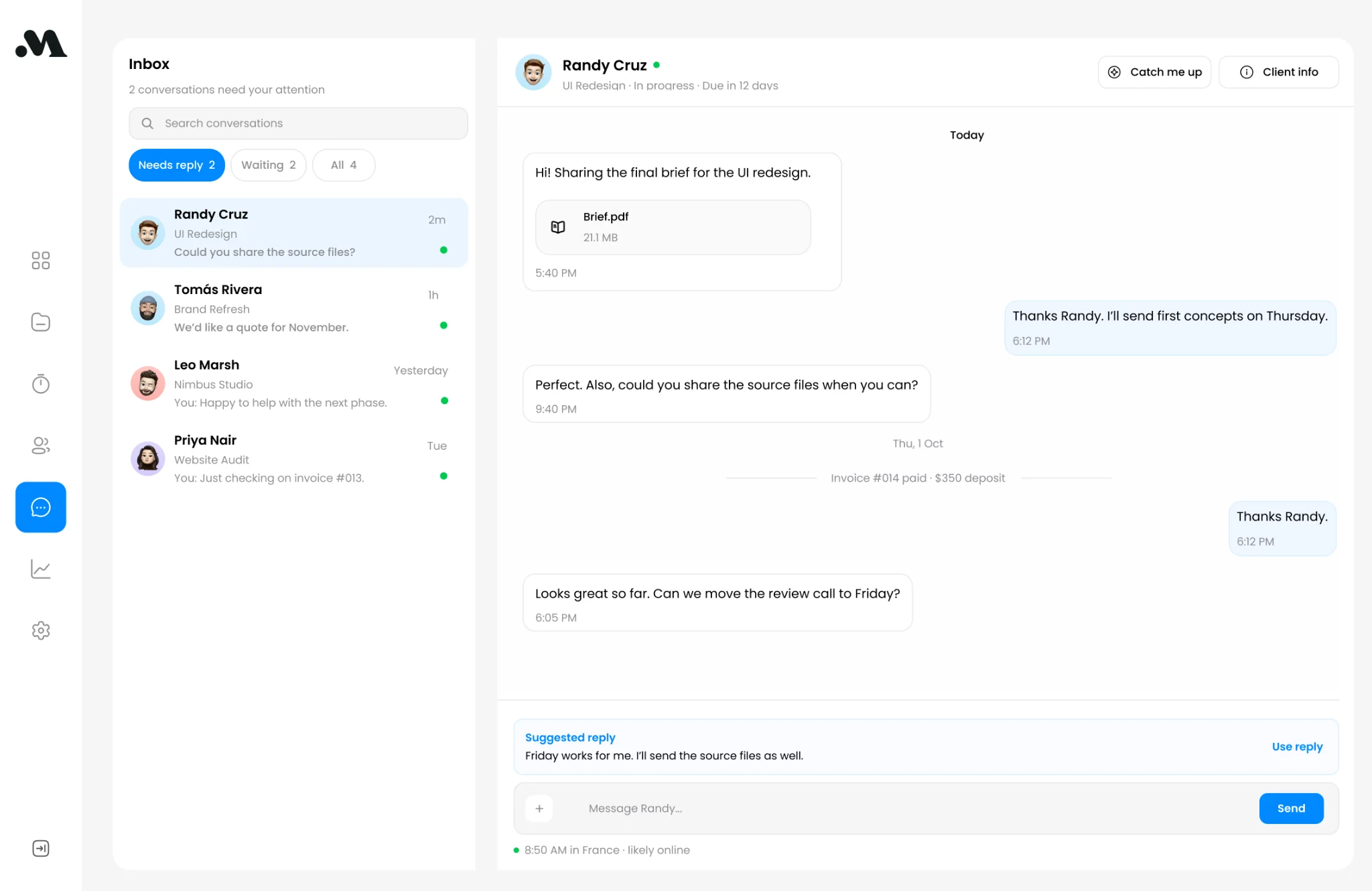
Messages
4 screens
Inbox
Chat
Catch me up
Suggested reply
06
Finance
5 screens
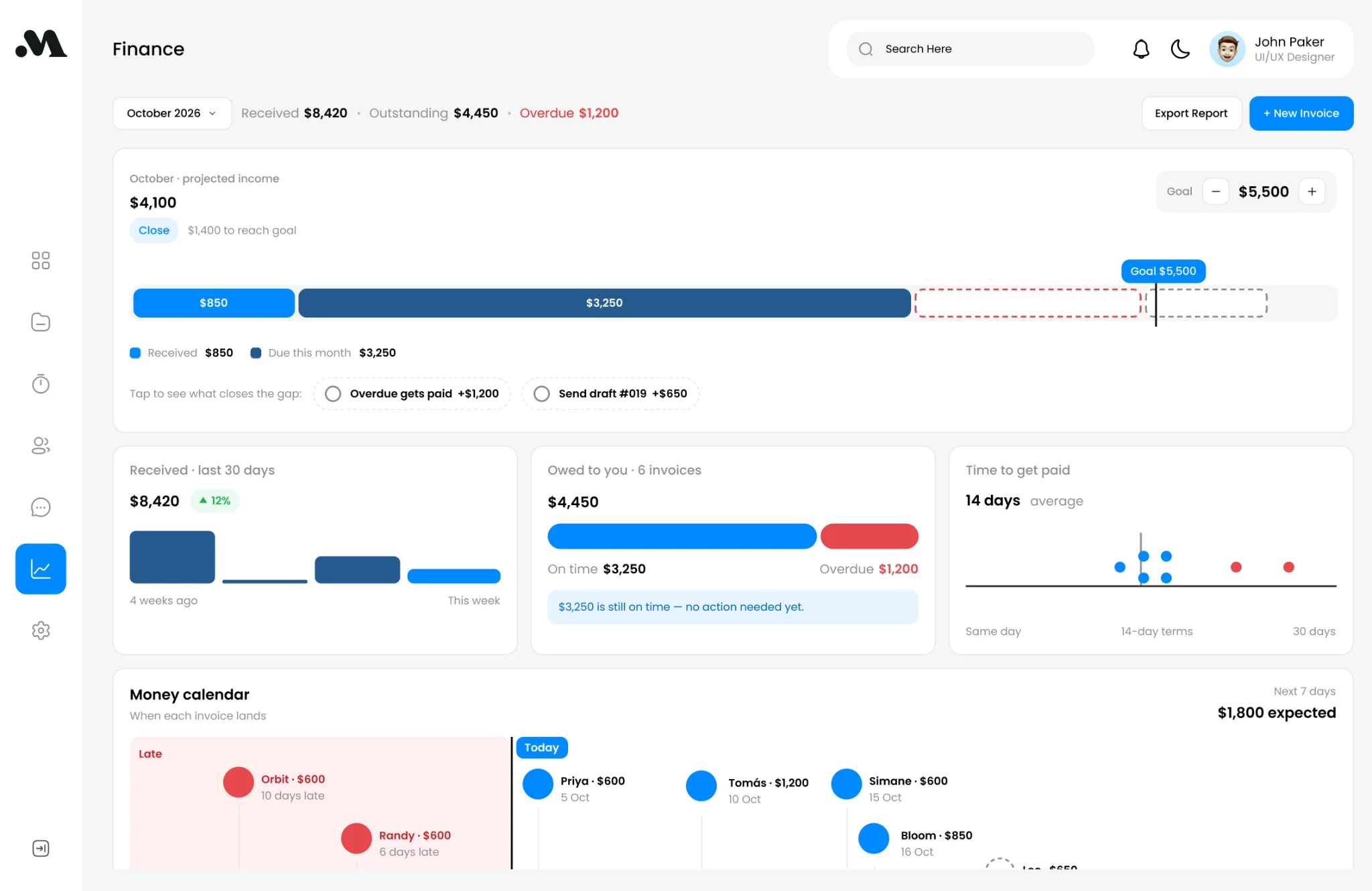
Projected income & goal
Money calendar
Income by month
Who pays you
Invoices
07
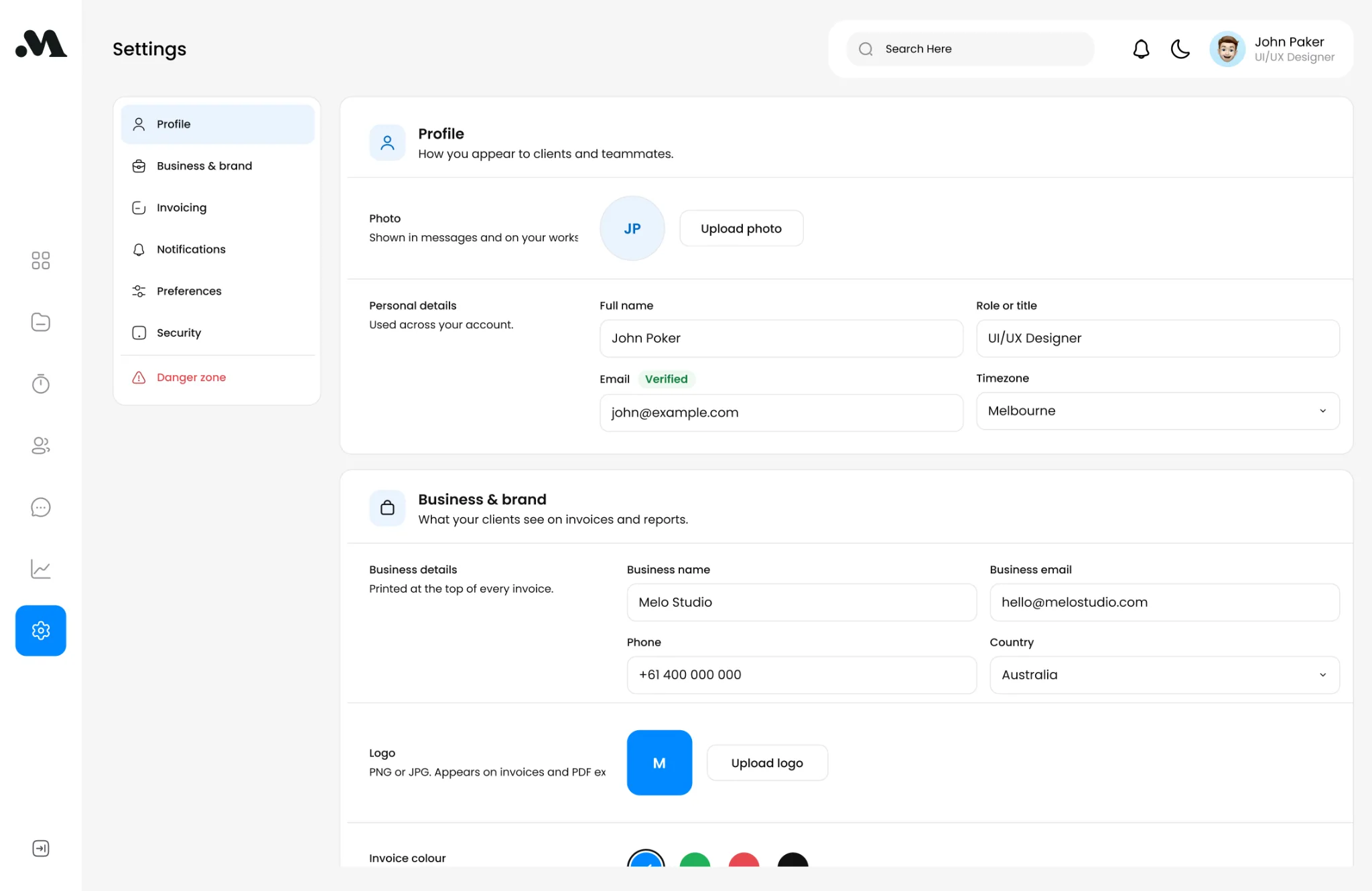
Settings
6 screens
Profile
Business & brand
Invoicing
Notifications
Preferences
Security
01
Everything is one click away
All seven destinations live in the sidebar, so a freelancer can move between projects, time, clients and money without deep navigation.
02
Details open beside the list
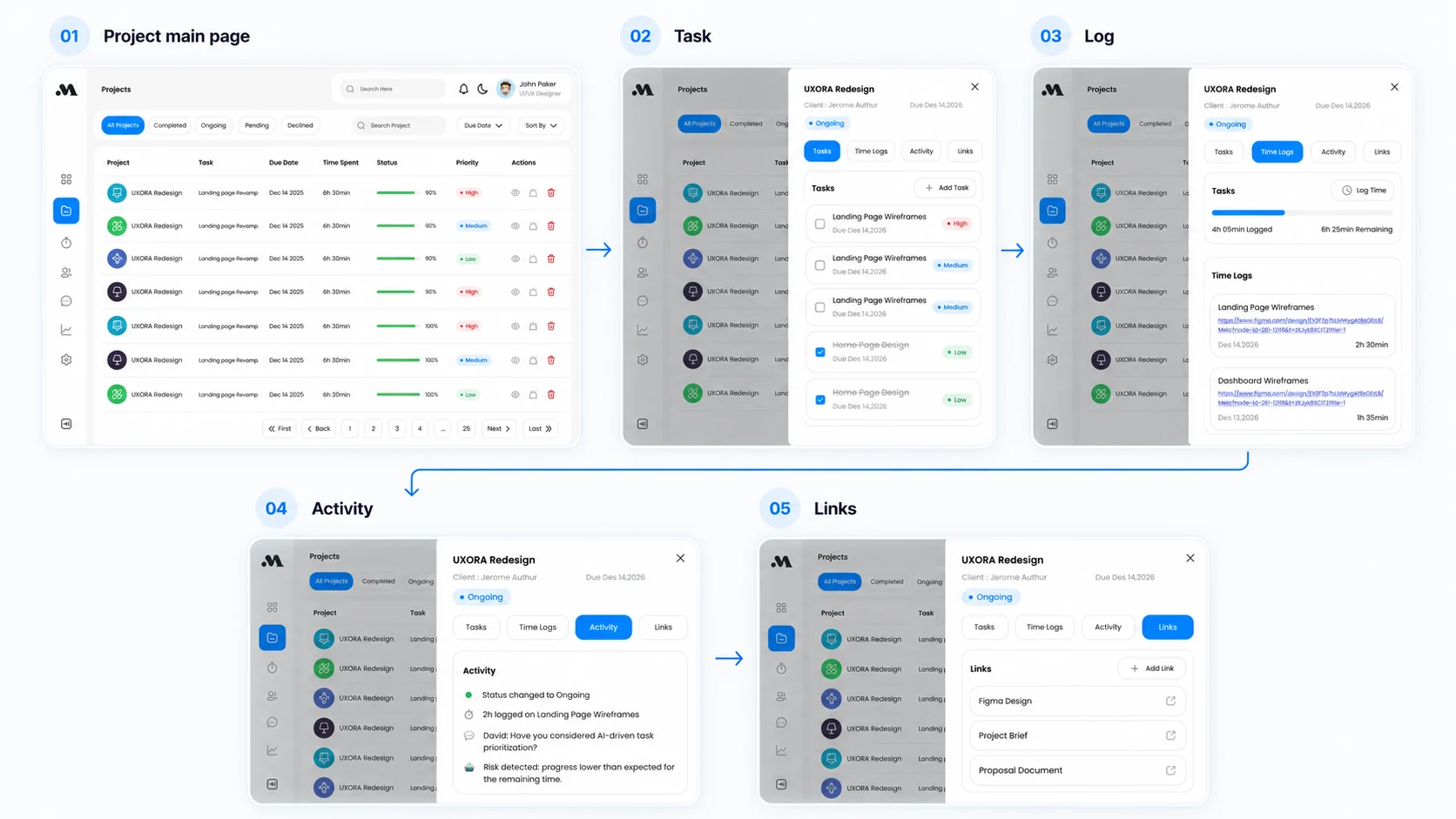
Selecting a project reveals tasks, time logs, activity and links while keeping the list visible, which supports fast context switching.
03
Money has its own home
Invoices, forecasts and payment timing sit together inside Finance because cash flow was one of the biggest anxieties in the research.
FIRST-RUN FLOW
From sign-up to workspace
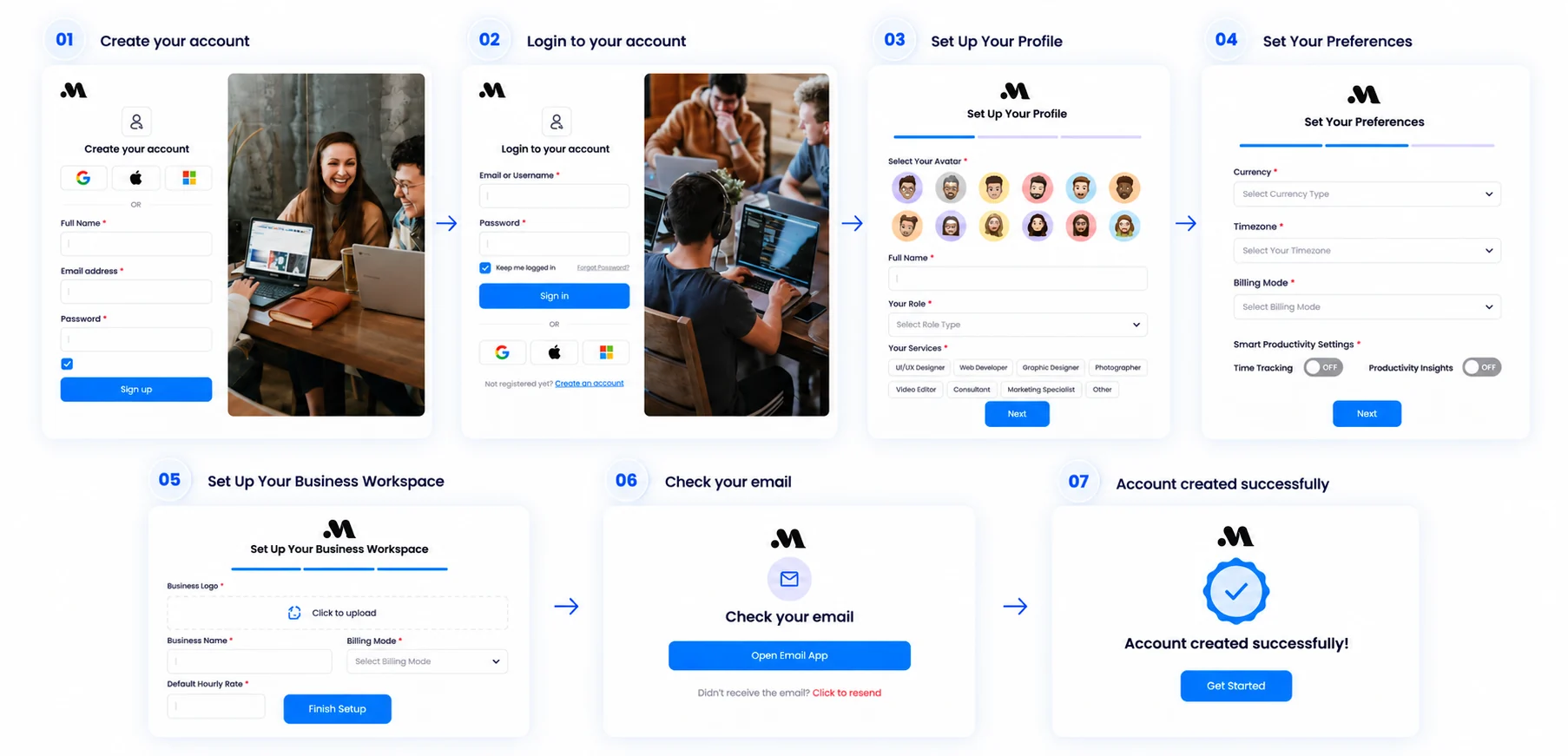
The first-run experience is kept short: authentication, verification and a lightweight onboarding flow that personalises the workspace around the freelancer’s role and services.
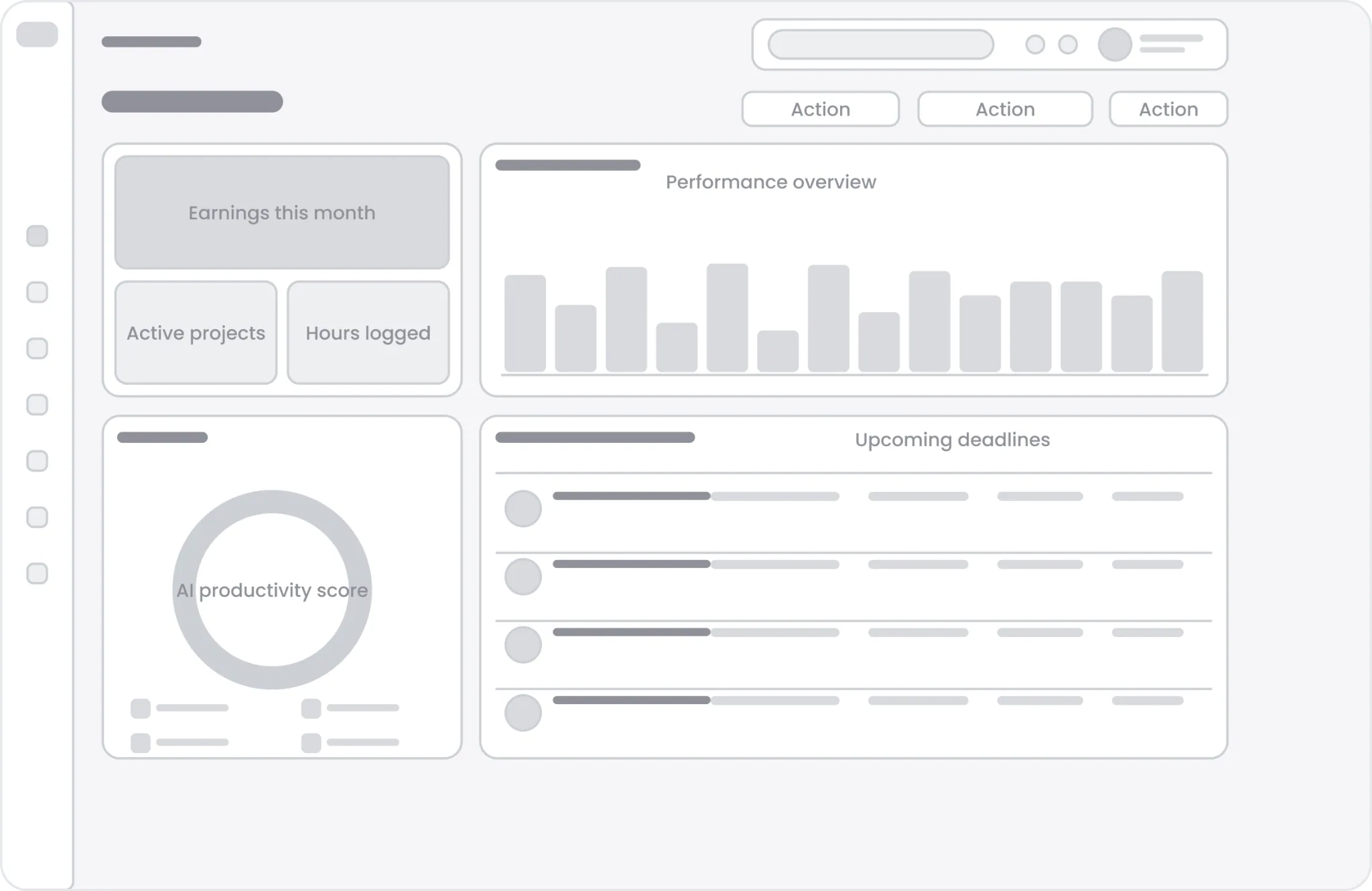
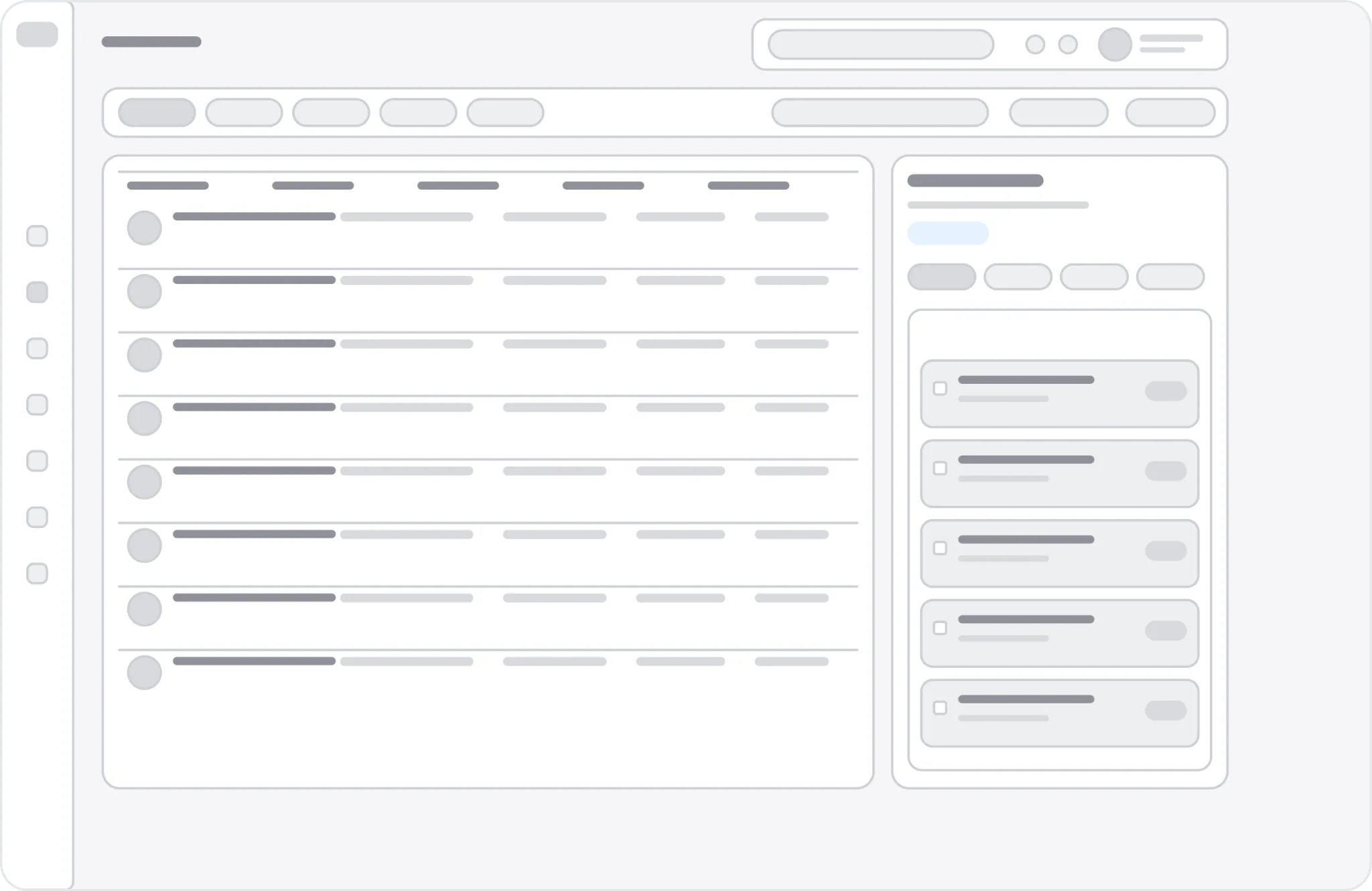
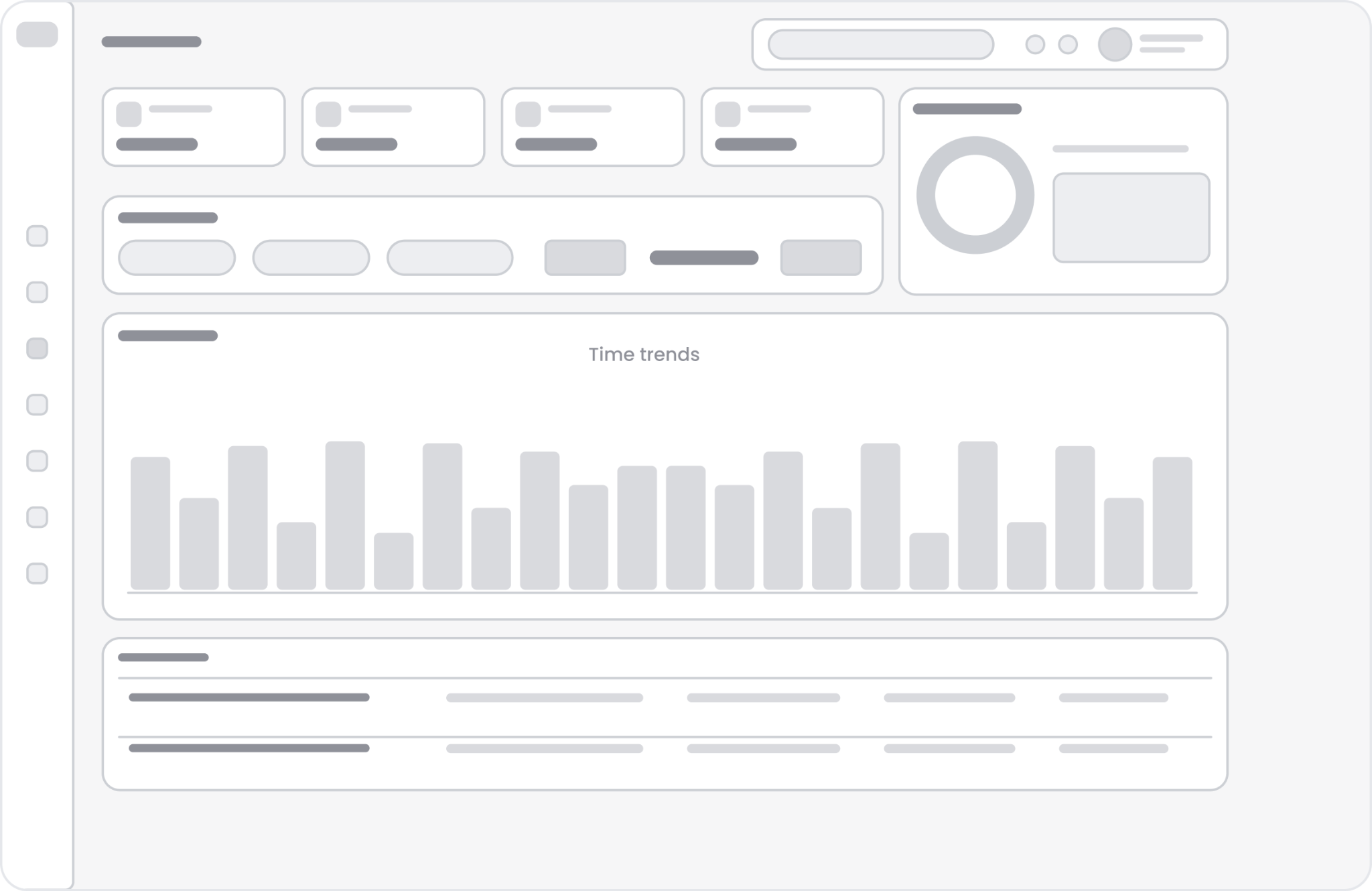
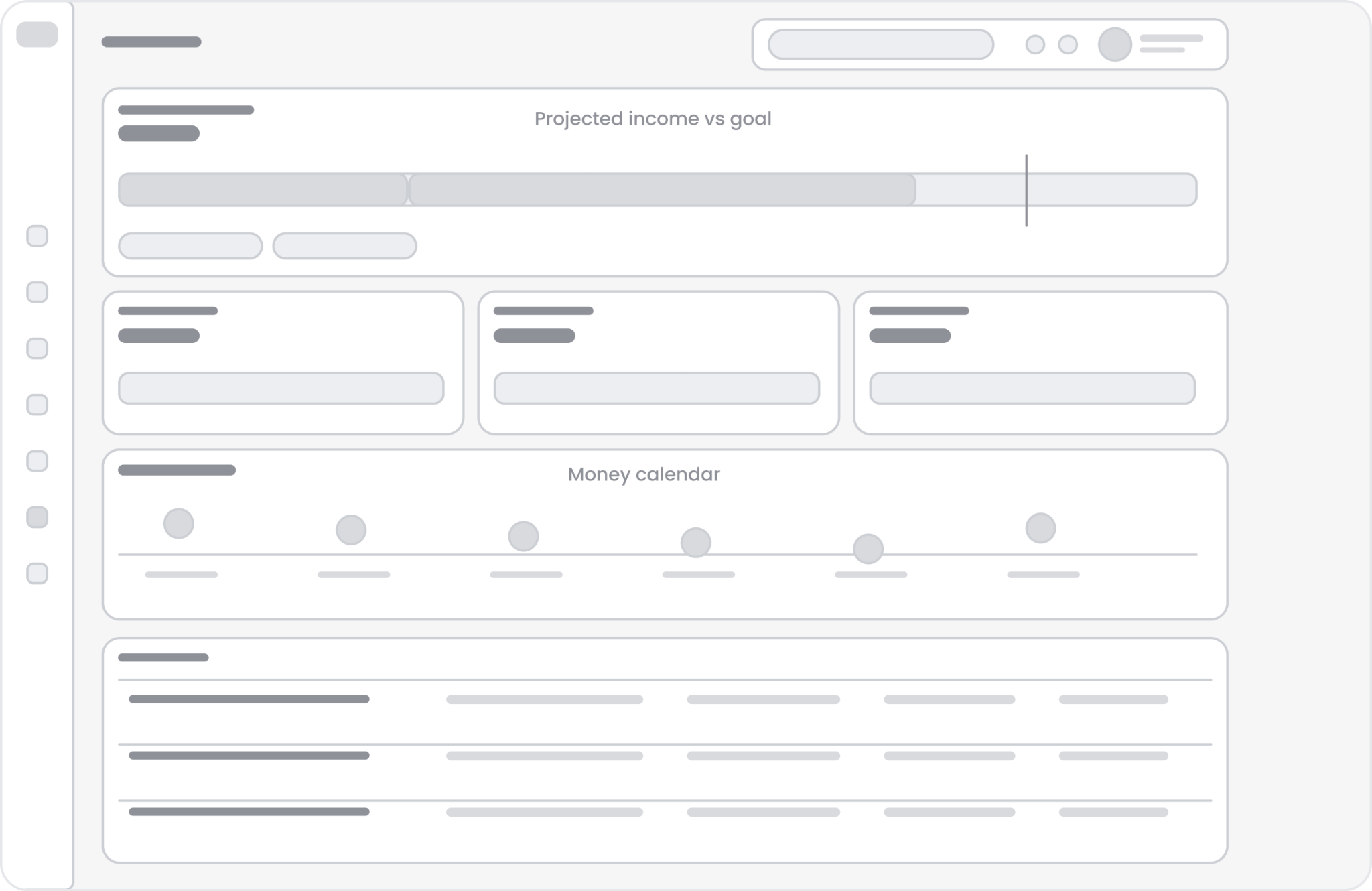
Low-fidelity layouts helped me decide the hierarchy, grid and information placement before getting into colour, typography and component styling.
DASHBOARD
Daily priorities first
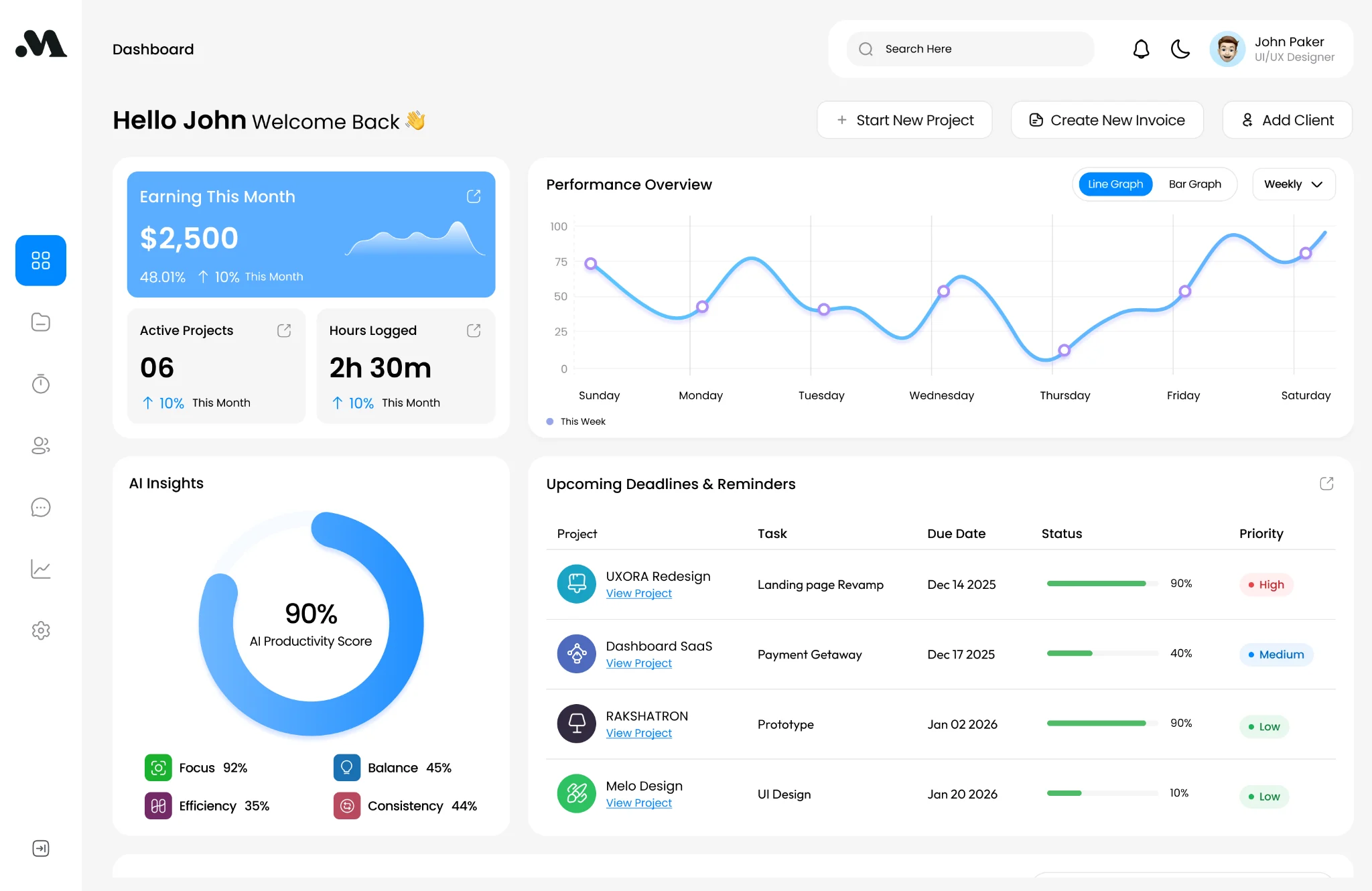
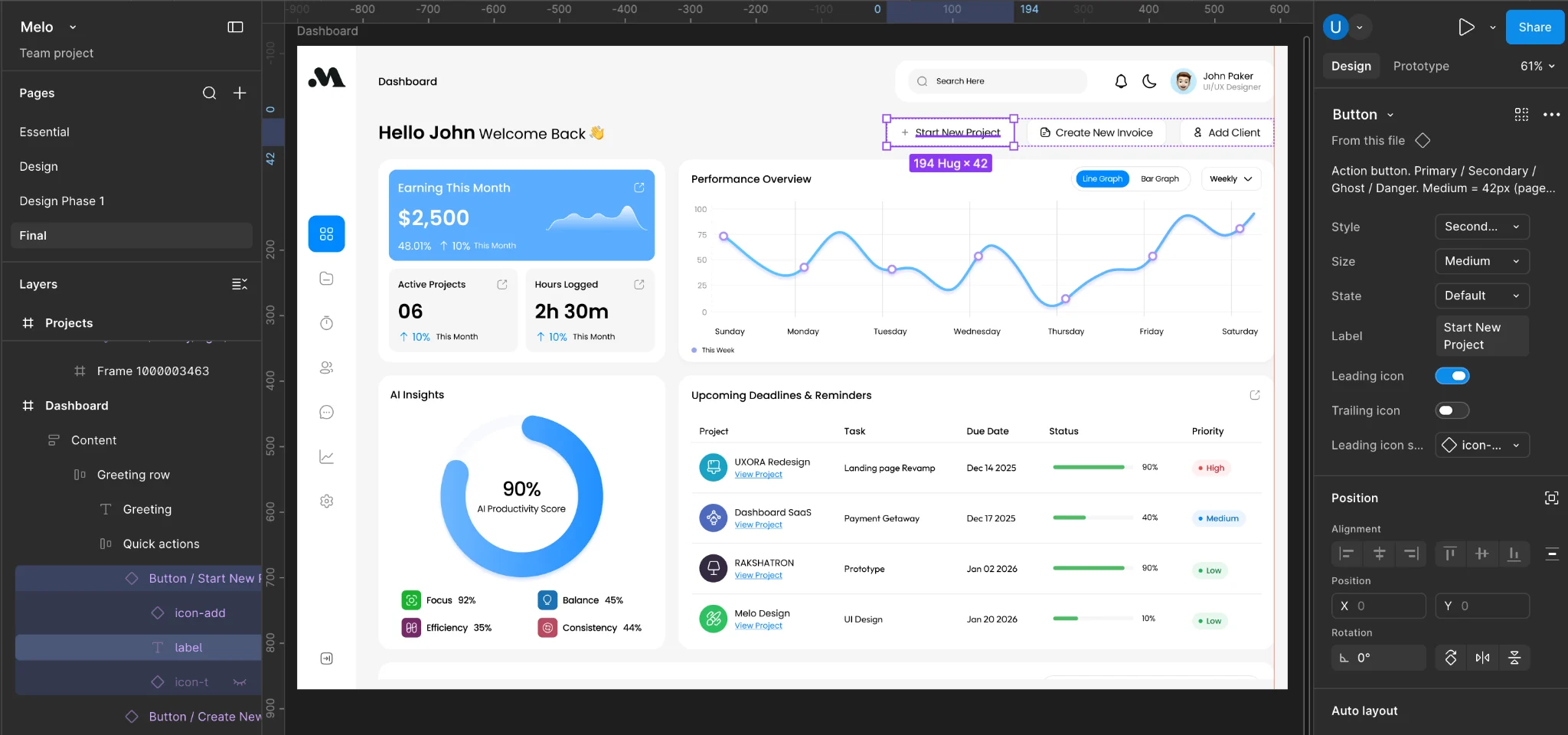
Earnings, active projects and hours logged appear above the fold, followed by AI insights and upcoming deadlines.
PROJECTS
List + detail panel
The list stays visible while detail panels reveal tasks, time logs, activity and links, helping users keep context.
TIME TRACKING
Always-ready timer
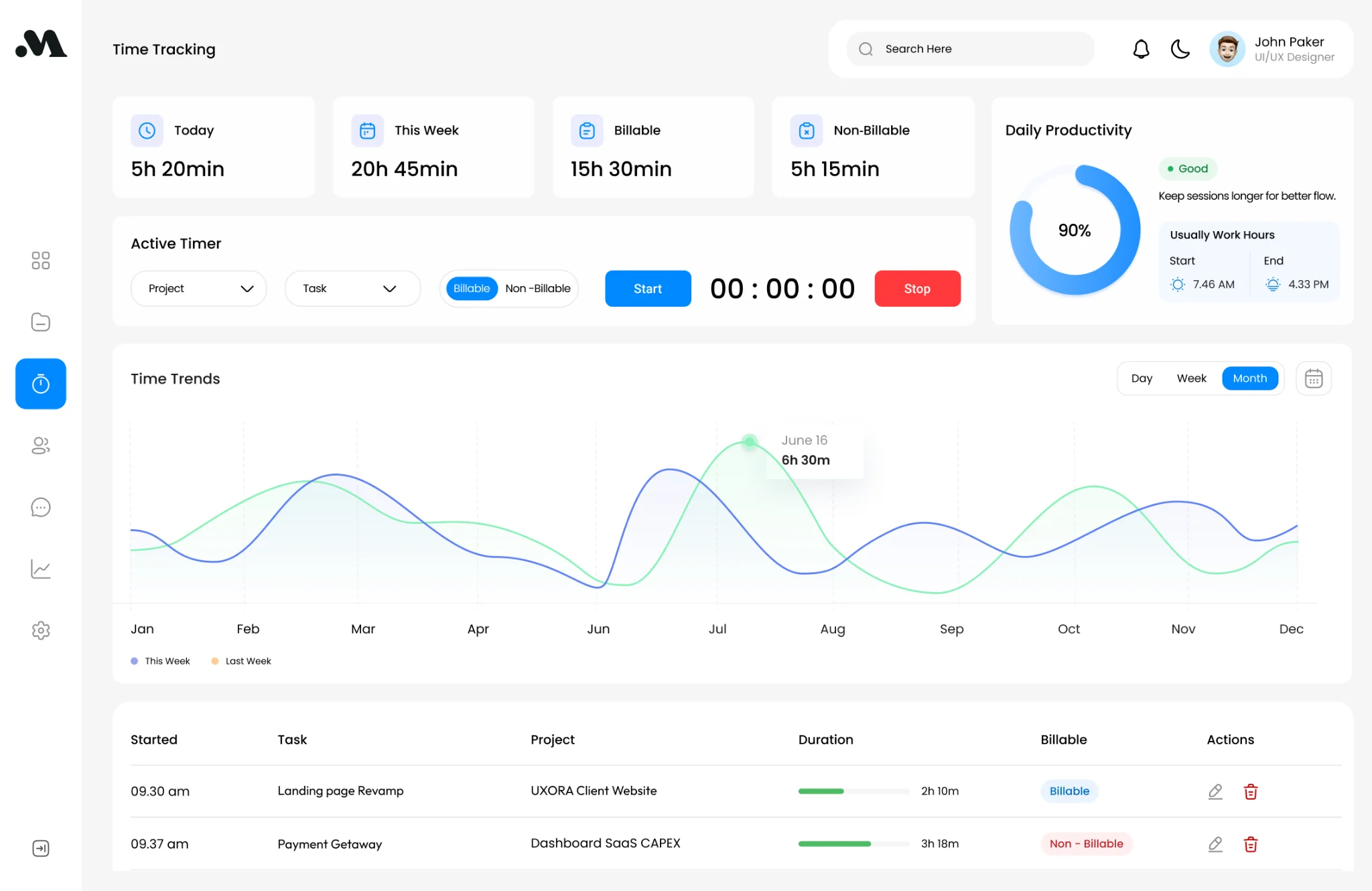
The timer is central, supported by today’s totals and trend views so logging work feels fast and reliable.
FINANCE
Money flow made visible
Projected income vs goal, a money calendar and invoices are stacked in order of urgency and decision-making value.
These wireframes established what sits above the fold and how related tasks stay connected. They also reduced clutter before visual styling was introduced.
07 / ORIGINAL SOLUTION
Work, time and money in one place.
This is the original prototype tested in Maze. The post-test redesign appears in Design iteration below. Its navigation uses a slim icon sidebar with seven destinations. A freelancer can reach anything in one click, while key screens prioritise the actions they are most likely to need each day.
ONBOARDING
A short setup that makes the workspace feel personal.
The onboarding flow collects a few important details — avatar, name, role and services — so the experience feels relevant from the first screen rather than generic.
Know what is coming in — and what needs attention.
Finance brings projected income, goals, outstanding payments and the Money Calendar into one view. It highlights payment timing and provides actions to follow up on overdue invoices.
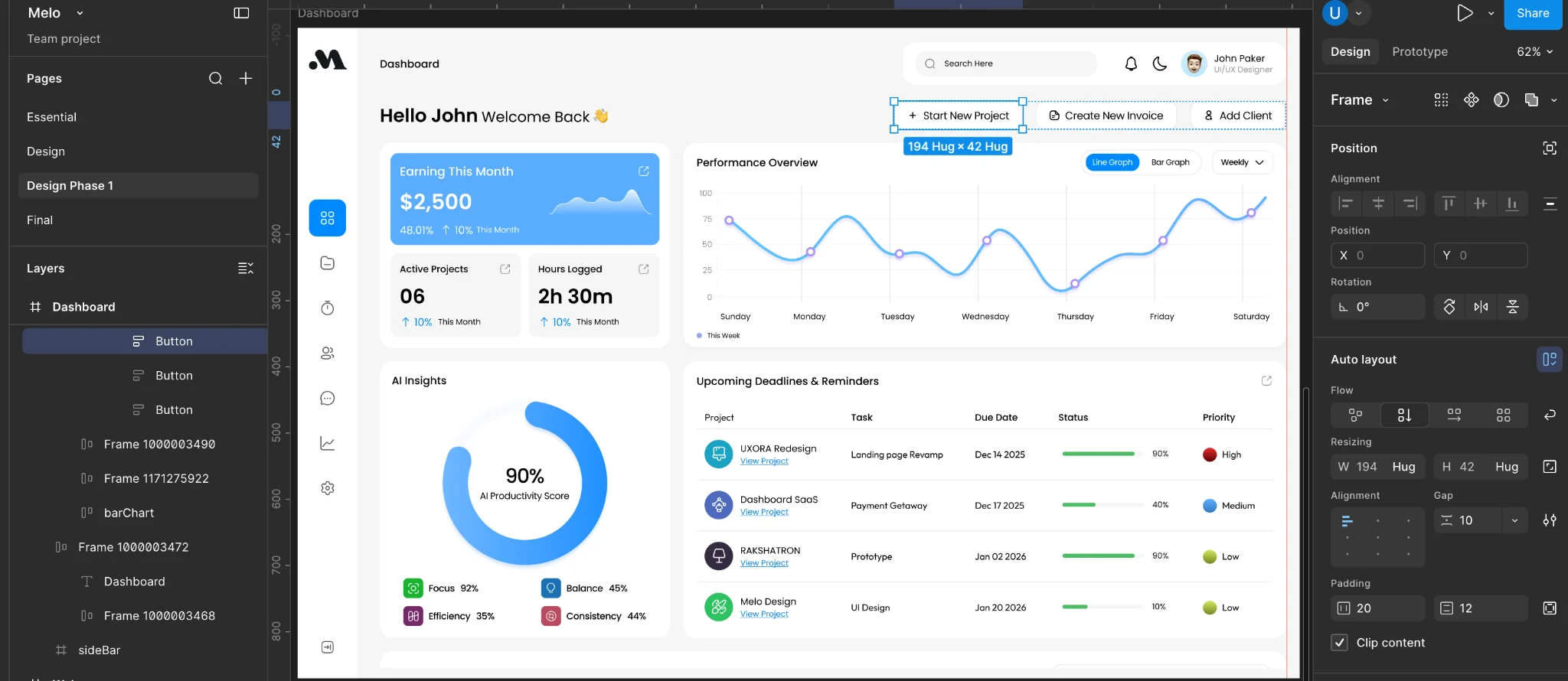
As the file grew, inconsistencies started to appear: too many button styles, inconsistent corner radii and several near-identical colours. I audited the work, consolidated values into tokens and rebuilt repeated UI into reusable components.
SYSTEM SNAPSHOT
Visual foundations
Design tokens across 5 variable collectionsPoppins text styles + 4 shadow stylesVariants across 5 core componentsHand-built elements replaced with component instances
One of the key improvements was moving from hand-built screens to component-based screens so the product could be refined faster and stay visually consistent.
Design system takeaway · The system reduced inconsistency, made iteration easier and created a cleaner foundation for future handoff and expansion.
09 / USABILITY TESTING
Tasks completed. Clarity still to improve.
I tested the Melo prototype in Maze to see whether people could find the information and actions they needed. Completion was high, but misclicks exposed friction that success rates alone would have hidden.
STUDY REACH16
Study responses
13–16 responses per task.
TEST COVERAGE7
Everyday tasks
Projects, clients, payments, time and messages.
PERCEIVED EASE7.6/10
Average ease rating
13 responses · 1 = very difficult, 10 = very easy.
TASK PERFORMANCE
Reaching the goal did not always mean a clear route.
Compare task success with the misclick rate. Both use a 0–100% scale.
TaskSuccess rateMisclick rate
Dashboard progress16 responses
Success100%
Misclicks32.2%
Review payments15 responses
Success93.3%
Misclicks66.5%
Start a timer15 responses
Success93.3%
Misclicks60%
Client details13 responses
Success100%
Misclicks21.3%
Find projects13 responses
Success100%
Misclicks17.6%
Review project tasks13 responses
Success100%
Misclicks66.7%
Client conversations13 responses
Success92.3%
Misclicks52.1%
Misclick rate measures clicks outside interactive hotspots. It is not the percentage of people who failed a task.
Explore task times, drop-off and response counts +
Source: Maze report exported 22 October 2026. The report contains 16 study responses, seven prototype tasks and two feedback questions; individual tasks received 13–16 responses. These are findings from a small prototype study, not live-product performance or proof of post-redesign improvement. Misclicks can also reflect prototype hotspot coverage; a follow-up test should check both interaction clarity and prototype completeness.
10 / DESIGN ITERATION
From completed tasks to clearer journeys.
I redesigned the key screens using the Maze task results and written feedback. The focus moved from showing information to making the next action easier to recognise.
Redesigned. Ready to retest.
The metrics below describe the original prototype. The impact of these changes has not yet been measured.
01 / NAVIGATION
Give every destination a clear name.
CompactExpanded
What testing revealedTwo written responses explicitly requested labels or tooltips.
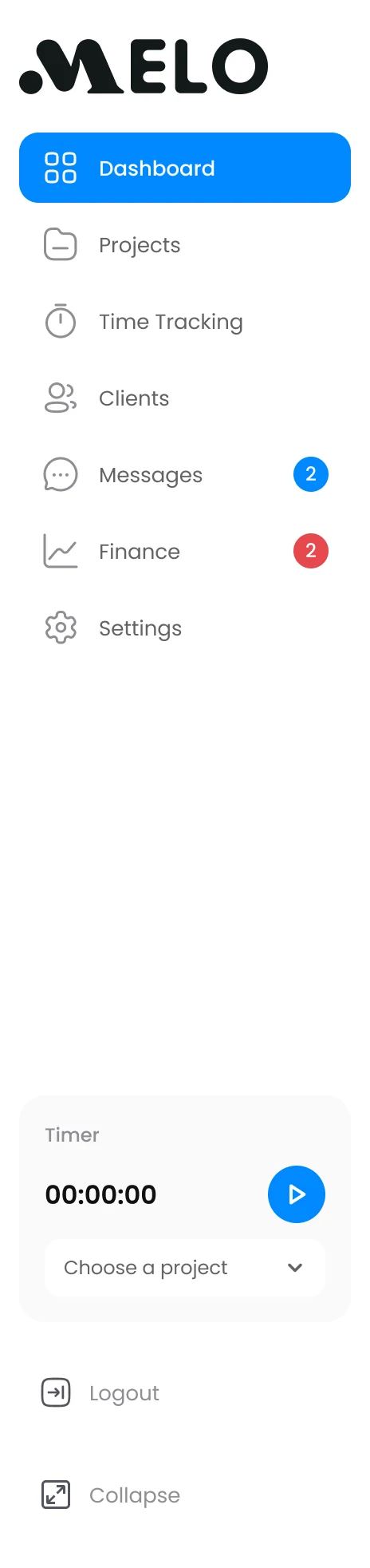
I added an expanded sidebar with names for all seven core destinations, so people can recognise a destination through text as well as icons.
The timer dock and project selector keep tracking close to navigation. Expand and collapse controls let people choose how much workspace to use.
Design intentReduce ambiguity around icons and make the timer easier to find.
02 / DASHBOARD
Start with what needs attention.
What testing revealedStarting a timer recorded 60.0% misclicks; payment review recorded 66.5%.
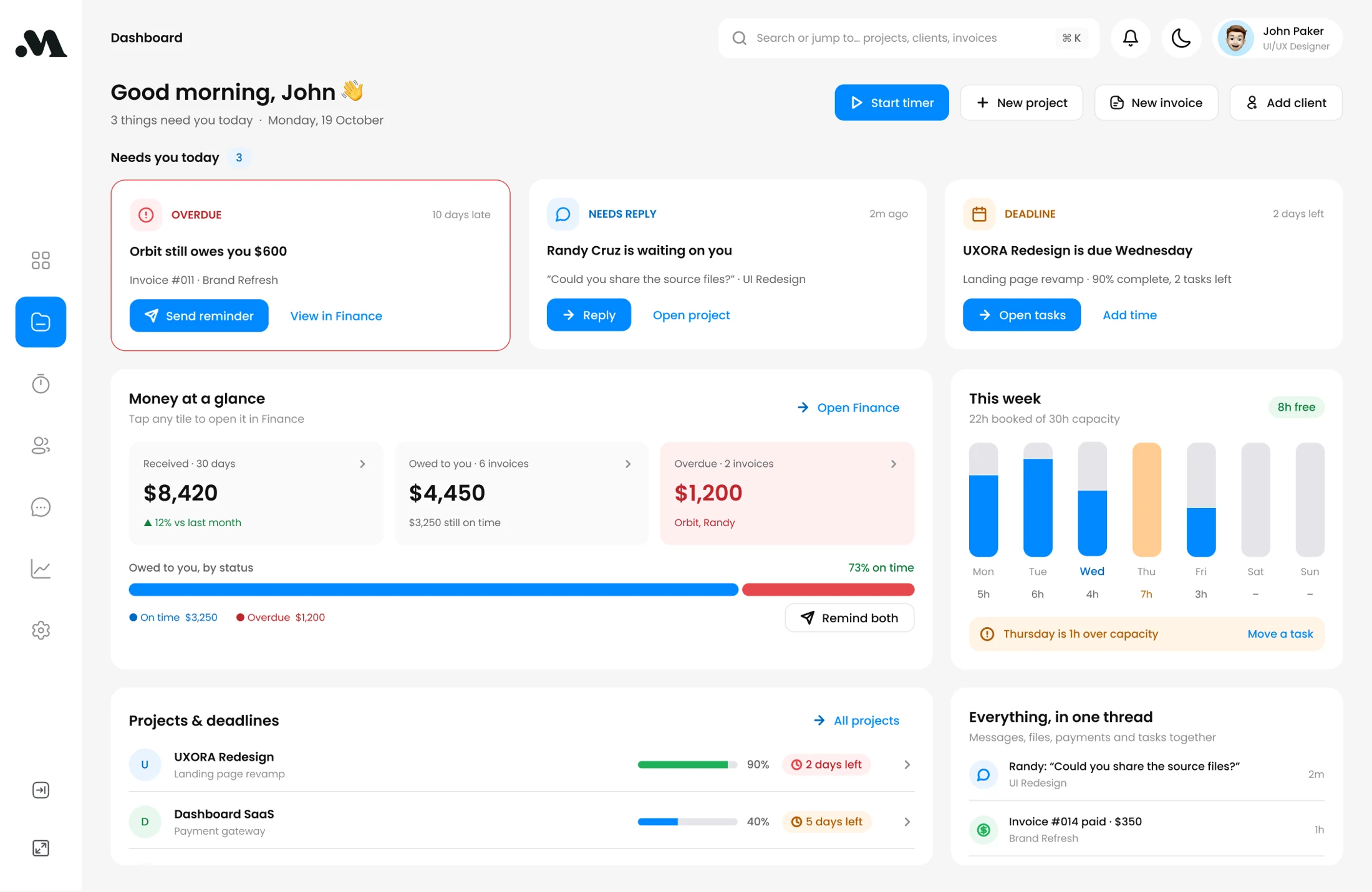
Dashboard · Updated design
What I changed
I brought overdue payments, waiting replies and approaching deadlines to the top, each paired with a named action. Payment status and weekly workload now have visual summaries.
Why this direction
Start timer, Send reminder, Reply and Open tasks make the next step explicit.
03 / PROJECTS OVERVIEW
Make the next project action explicit.
What testing revealedReviewing project tasks succeeded, but recorded 66.7% misclicks.
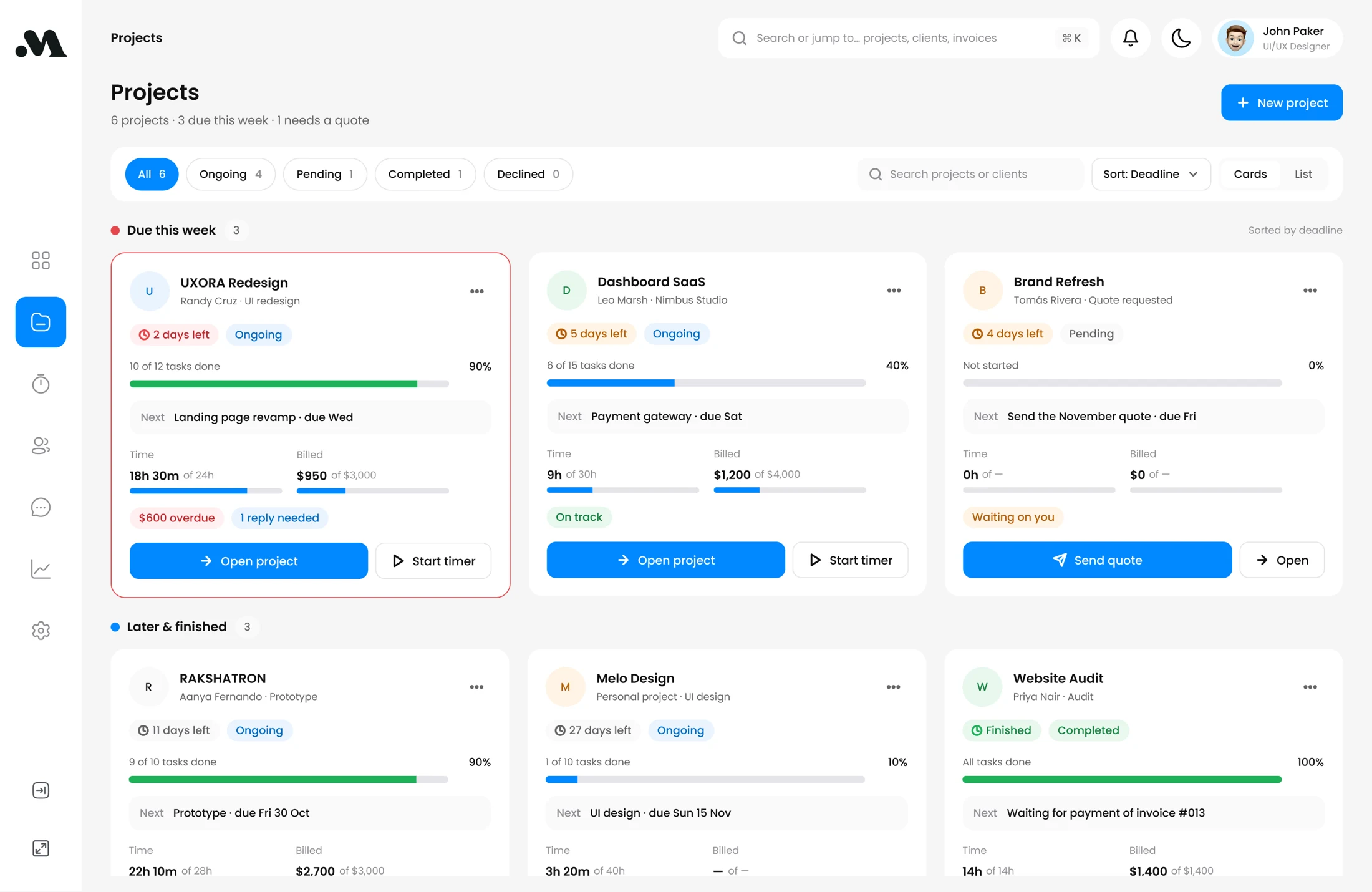
Projects overview · Updated design
What I changed
I grouped projects by urgency and added deadline countdowns, progress, billing context and the next task to each card.
Why this direction
Open project and Start timer provide labelled entry points; overdue balances and requests stay in context.
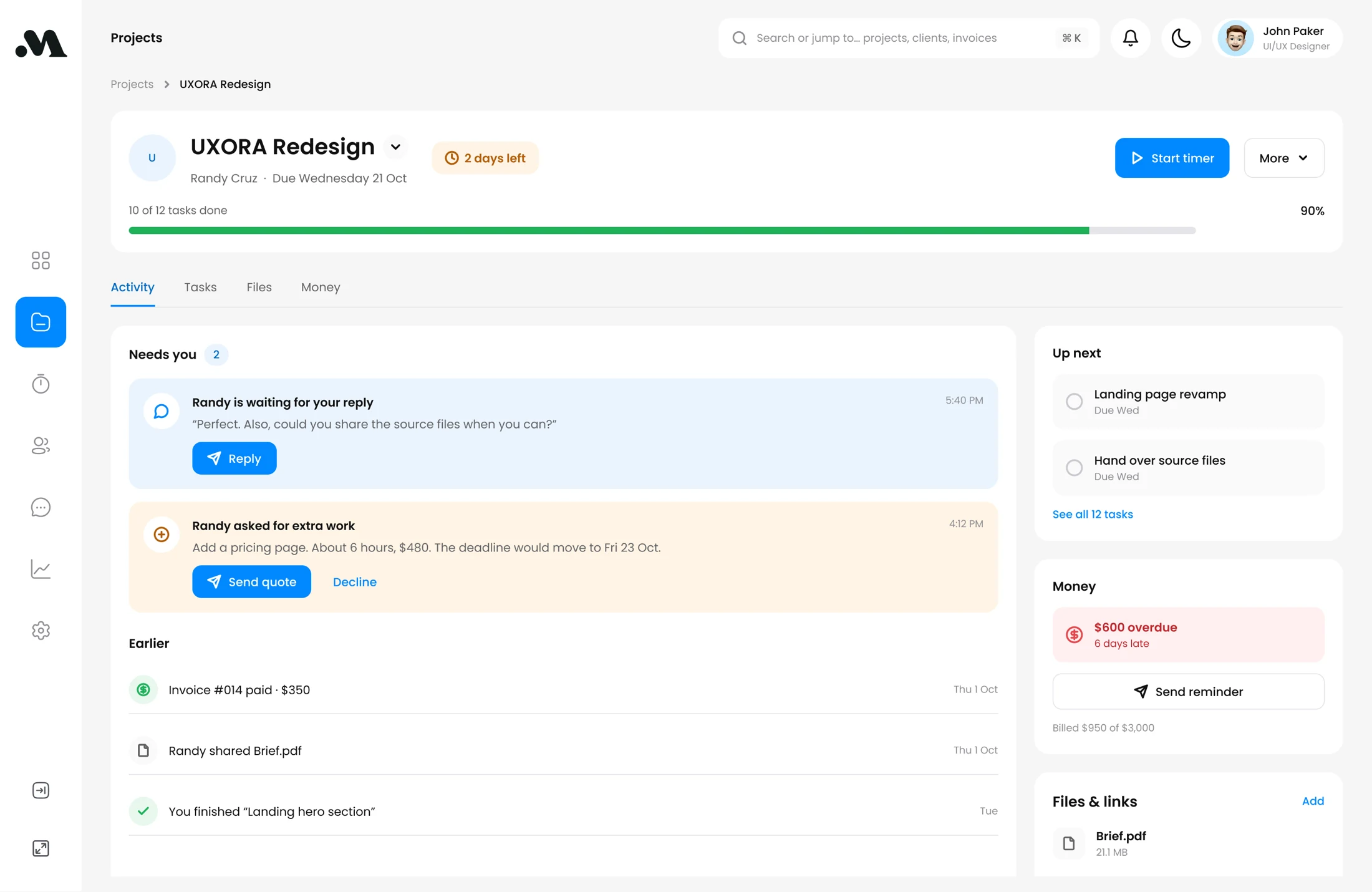
04 / PROJECT DETAIL
Keep the conversation close to the work.
What testing revealedFinding conversations averaged 89.1 seconds, the slowest task.
Project detail · Updated design
What I changed
I brought client replies, extra-work requests, tasks, money and files into one project view.
Why this direction
The activity thread supports replies and quote decisions; Files & links keeps supporting resources nearby.
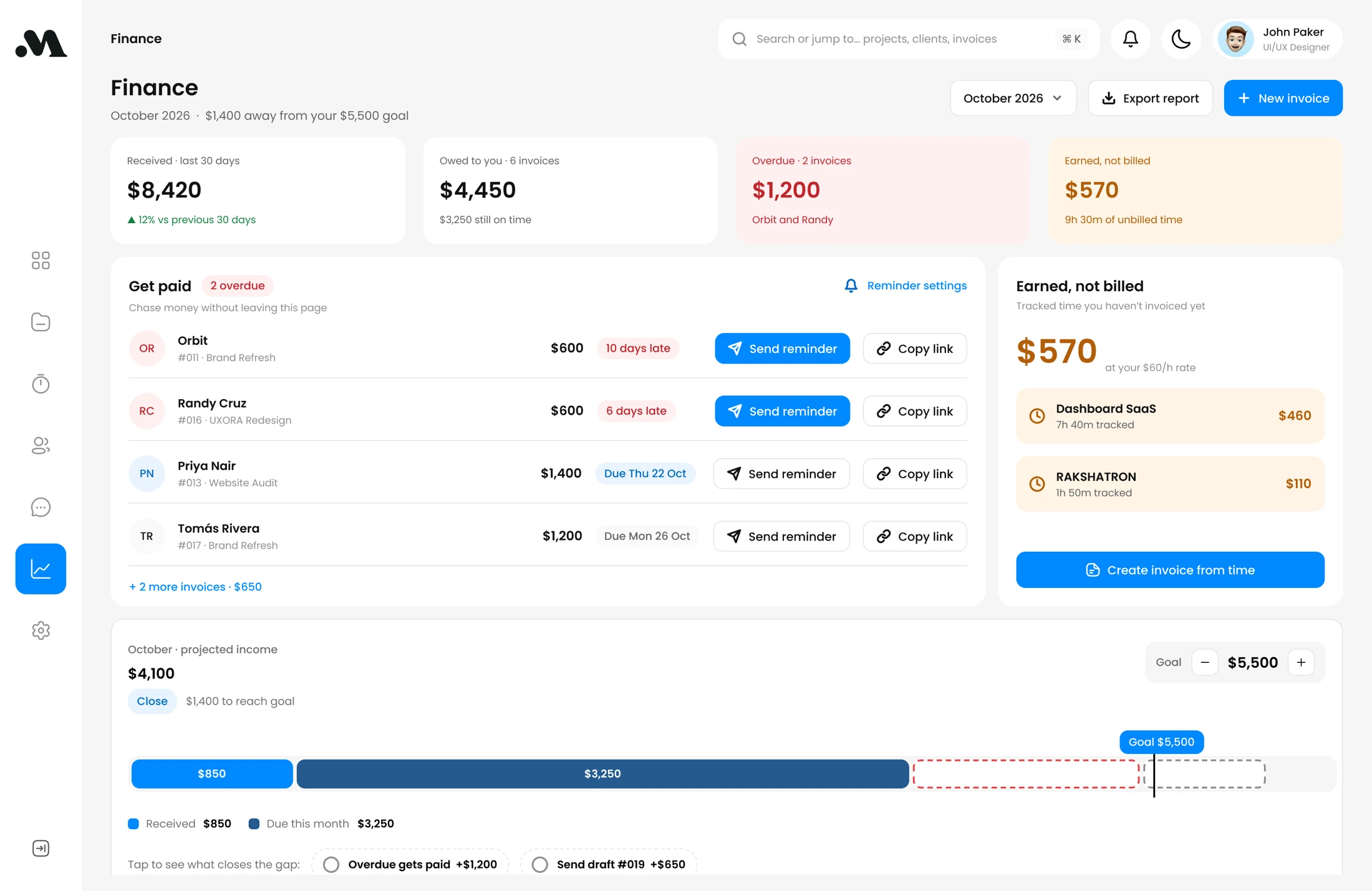
05 / FINANCE
Turn payment visibility into action.
What testing revealedPayment review recorded 66.5% misclicks, one of the highest rates in the study.
Finance · Updated design
What I changed
I separated received, owed, overdue and earned-but-unbilled amounts, then placed follow-up actions beside the relevant invoices.
Why this direction
Send reminders from the invoice list and turn unbilled time into an invoice.
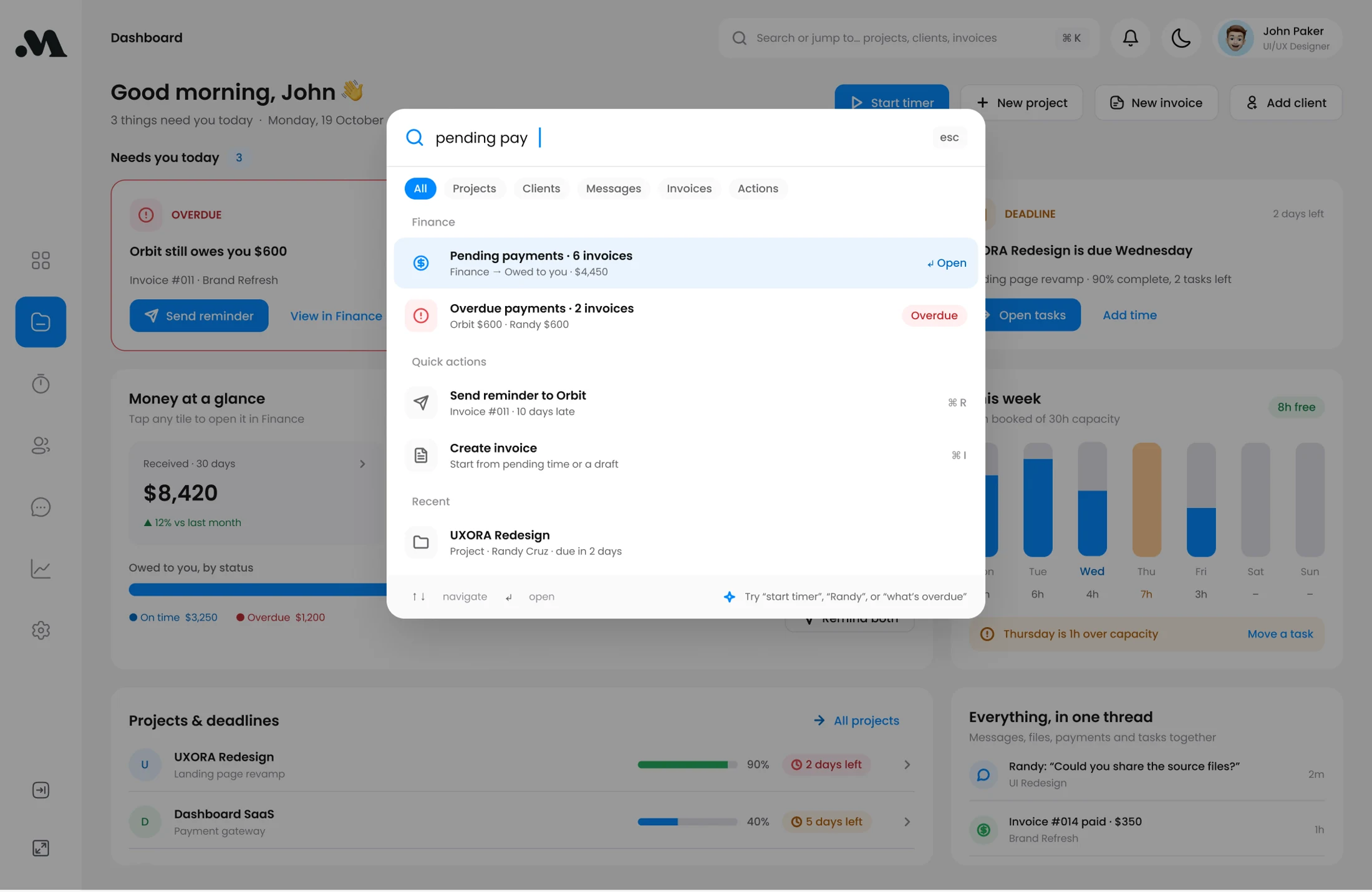
06 / SEARCH & SHORTCUTS
Reach the task through familiar words.
What testing revealedOne respondent expected pending payments to lead directly to Finance.
Search & shortcuts · Updated design
What I changed
I explored a second route to payments and frequent actions through search. The example query “pending pay” returns payment destinations, invoice results and reminders.
Exploration to validate
Search and quick actions are designer-led extensions to the feedback, ready for validation.
Design iteration · 22 October 2026. Informed by the Maze report and 13 written feedback responses. UI amounts are sample data. Mobile access and calling were also requested; these screens do not demonstrate those features.
11 / NEXT STEPS
What still needs validation.
The Maze study established an initial prototype baseline. The redesigned screens now address navigation and action clarity. The next step is to repeat the key tasks and check whether misclicks and completion times improve. Melo remains a concept, with the AI guidance and pricing still to validate.
01
Iterate and retest the core tasks
Test the updated payment, timer, project-task and conversation routes against the original baseline before claiming an improvement.
02
Evaluate the AI score
Test whether freelancers understand how the score is calculated and whether the advice feels useful rather than intrusive.
03
Test pricing
Explore the $5–$10 range and whether a free tier helps communicate value without reducing trust.
04
Extend lower-priority features
The updated project view explores files and links. Validate that direction before extending contracts and collaboration.