Children
Recognisable visual cues, manageable interactions and encouraging feedback that make activities approachable.
Bright Spark — a preschool learning and monitoring experience for children, parents and teachers.
Bright Spark is an academic project exploring an integrated preschool monitoring and learning experience. It brings together children’s activities, development information and parent-teacher communication. My focus was making the experience approachable for young children while keeping everyday tasks clear for adults.
Research, design strategy, user flows, information architecture, wireframes, visual design, prototyping and usability evaluation.
BSc (Hons) IT · Interactive Media · SLIIT.
UX/UI contribution within a wider research system.
A learning experience that feels obvious to an adult can still be difficult for a young child. The research identified a need for interfaces tailored to preschoolers’ cognitive, emotional and physical abilities, alongside useful information and communication for adults.
Recognisable visual cues, manageable interactions and encouraging feedback that make activities approachable.
A clear view of their child’s activities and progress, with a simple route to communicate with teachers.
Ways to record observations and activities, review child information and share updates with parents.
Balance engagement with usability across these audiences, rather than treating every user as the same.
The discovery survey collected 55 adult responses between 23 and 28 August 2023. It captured expectations about digital learning, monitoring, navigation and visual design. The final report also describes interviews, observations and child-development research.
22 parents, 20 teachers, 12 guardians and 1 parent/teacher.
37 rated monitoring/customisation very important; 15 somewhat important.
Selected this when choosing digital apps or games for their child.
33 rated font choice very important; 19 important.
The research helped me focus on four ways to make Bright Spark easier for children to use.
Keep instructions short and put buttons in familiar places, so children can follow each task without remembering lots of steps.
Use welcoming characters and kind feedback, so children feel comfortable trying again when they make a mistake.
Use large buttons with space between them and simple taps, so children can select what they want more easily.
Understand what users need, sketch ideas, build a prototype and let people try it. Use their feedback to improve the design.
Personas, empathy maps and journey maps framed different user needs. The journey considered onboarding, the dashboard and child profile, then monitoring and communication. This connected learning with the information adults need to support it.
Use clear hierarchy and consistent navigation so people can recognise where they are and what they can do next.
Group child information, activities and reports around the child.
Use illustrations, colour and playful elements purposefully while keeping interactions understandable.
Connect observations and progress information with communication between parents and teachers.
52 of 55 respondents rated monitoring/customisation as important. Keep child profiles, activities and progress reporting together so adults can find the information they need.
36 of 55 selected age-appropriate design when choosing apps. Use developmental abilities to guide activity presentation and interaction complexity.
34 of 55 selected simple, clear navigation as part of a positive preschool experience. Keep routes consistent and make primary actions understandable.
52 of 55 rated font choice important or very important. Give labels and headings a clear hierarchy rather than relying on playful visuals alone.
These findings support the design priorities; they do not prove the interface resolved every need. Competitor exploration covered educational experiences and communication tools, with an opportunity to bring both together in a preschool-focused product.
I explored solutions through brainstorming and early wireframes, then developed detailed mockups and interactive prototypes. Successive design and implementation phases allowed layout and flow to evolve before treating the interface as final.
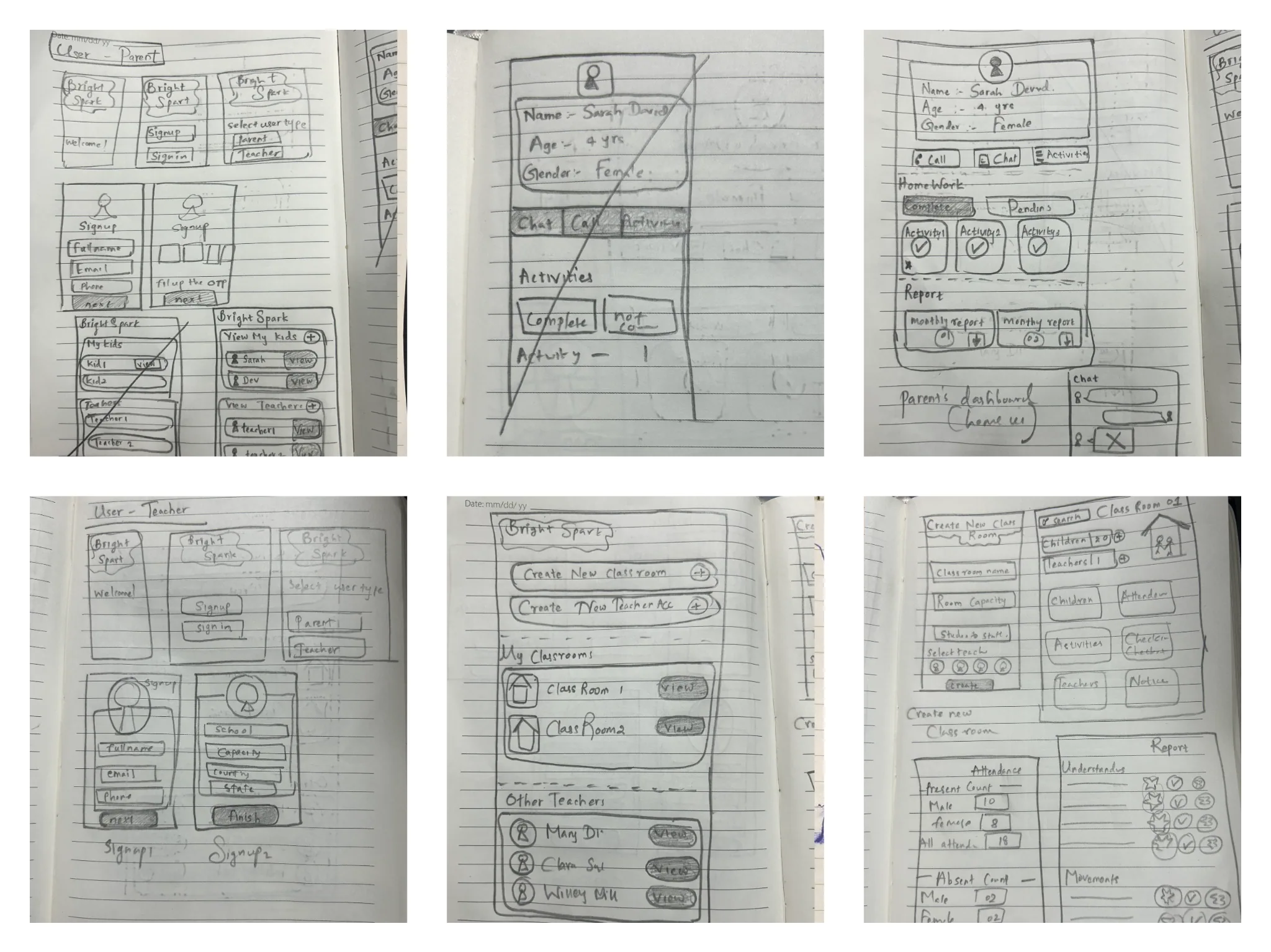
The experience grouped account access, child information, classroom management, activities, reports and games. Parent-teacher communication remained part of the wider product requirements.
Bright colours, illustrated characters and familiar imagery were intended to make learning inviting. The survey reinforced the need to balance appearance with clarity: 35 of 55 selected visually appealing design and 34 selected simple navigation as part of a positive experience.
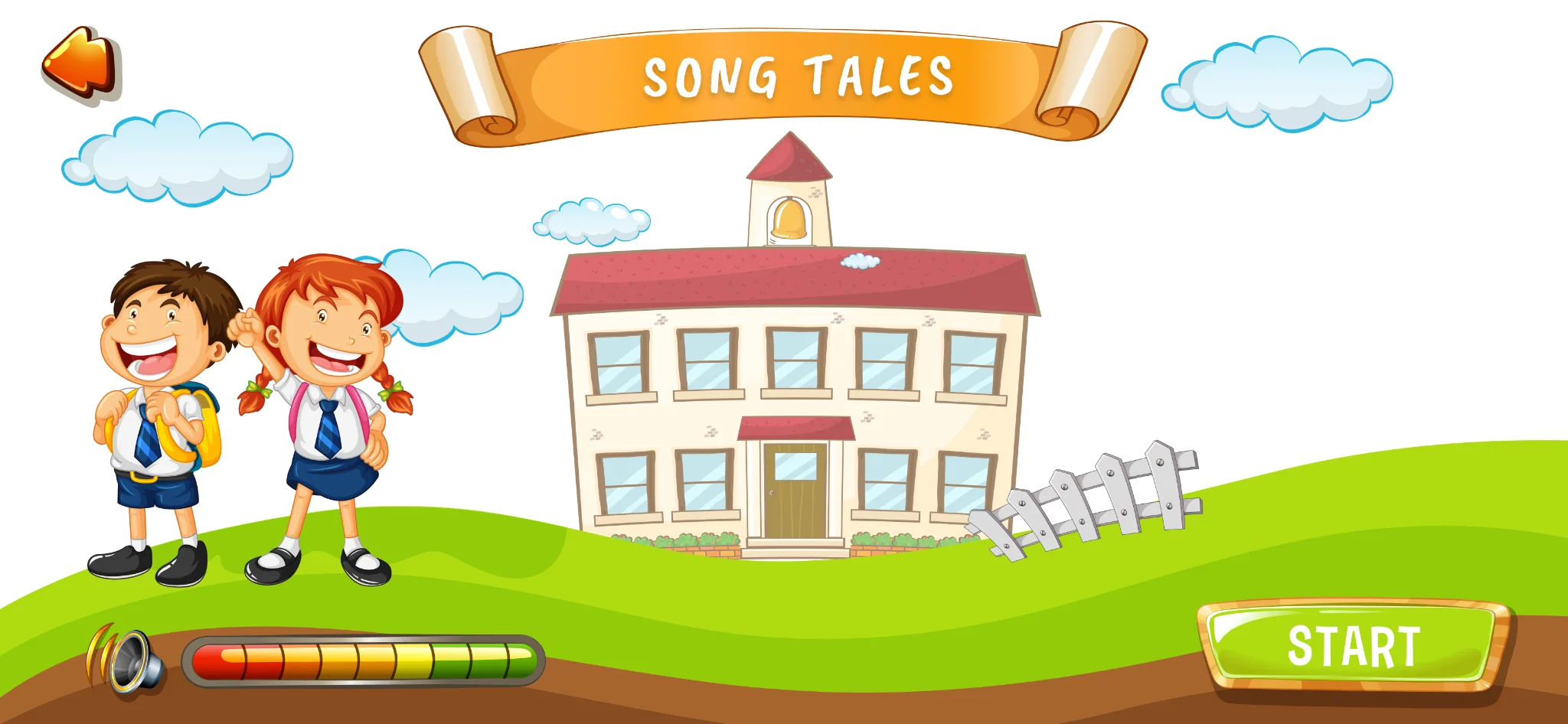

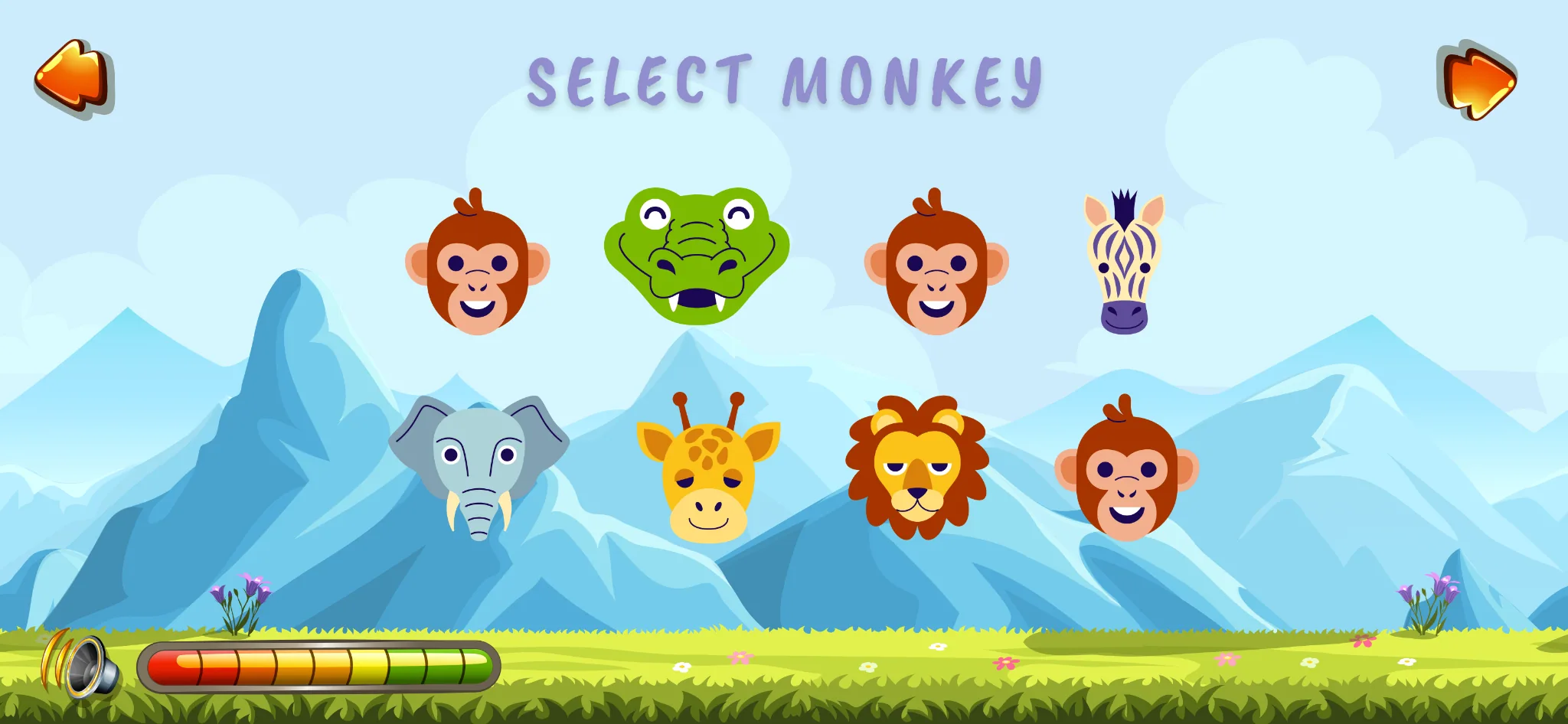
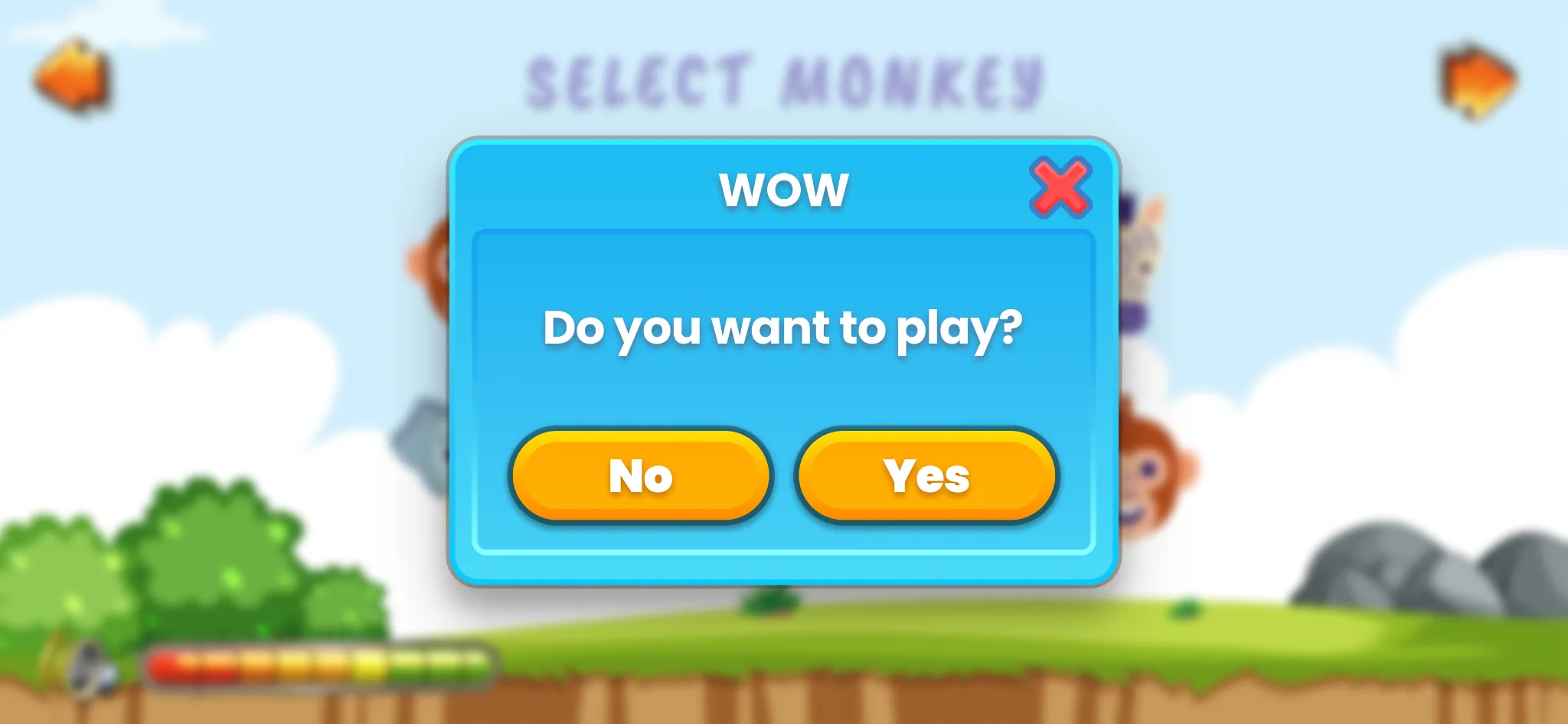
Introduce parent and teacher roles so the experience can respond to different responsibilities.
Repeat navigation, controls and spacing to build familiarity across screens.
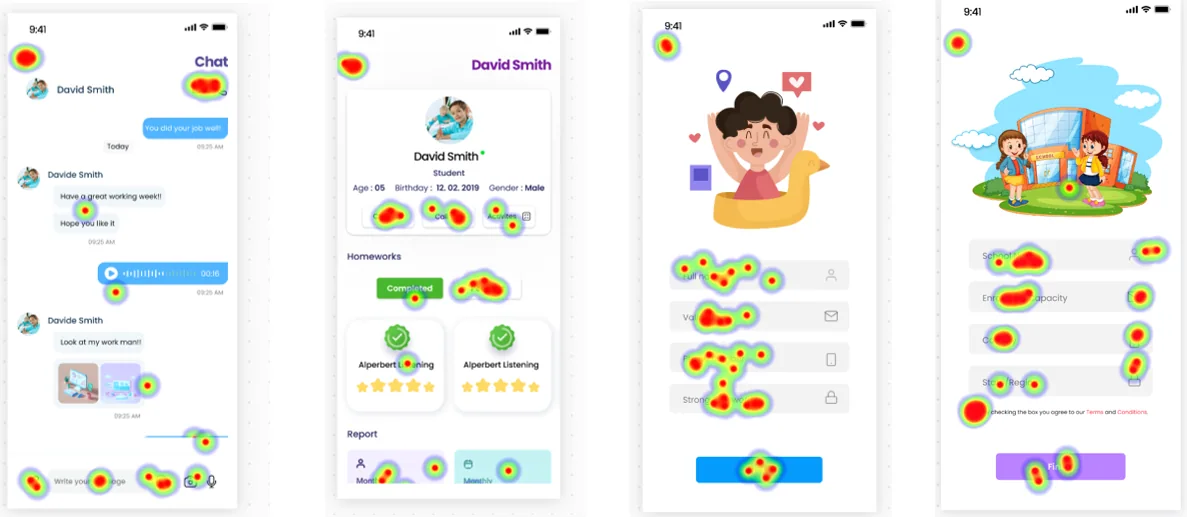
I tested prototypes with parents, teachers and children to explore how they used the interface. A/B testing compared design alternatives, while Useberry heat maps showed where people tapped. Surveys and follow-up interviews added feedback to guide the next iteration.
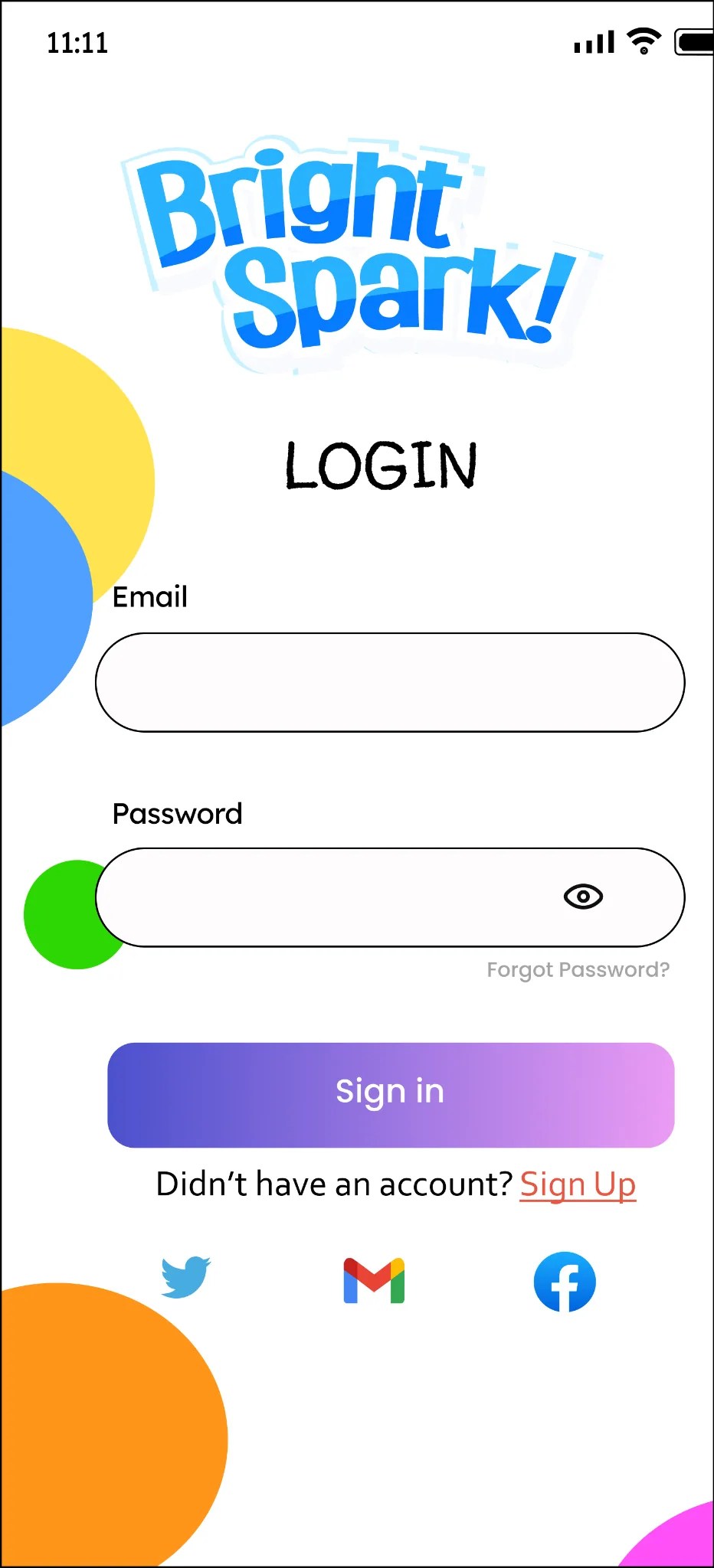
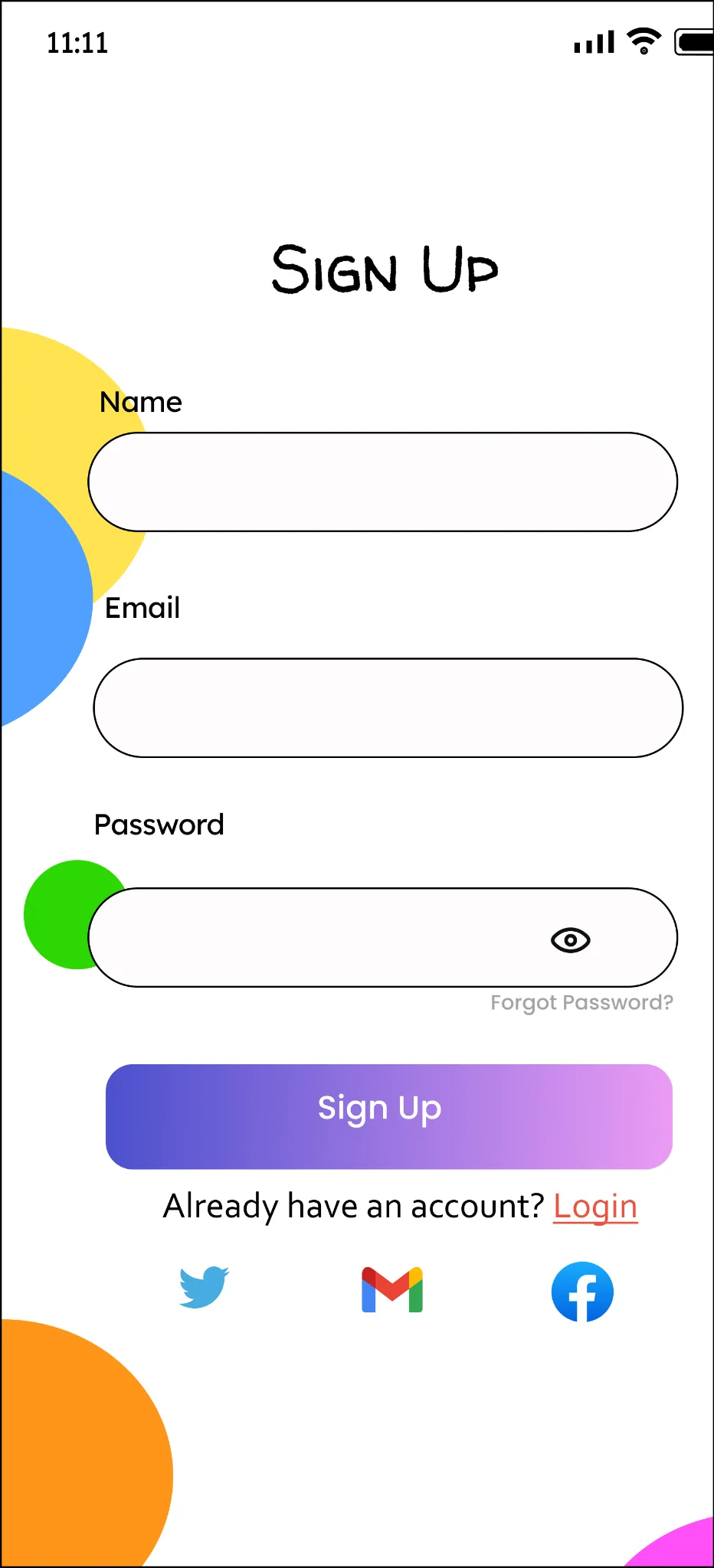
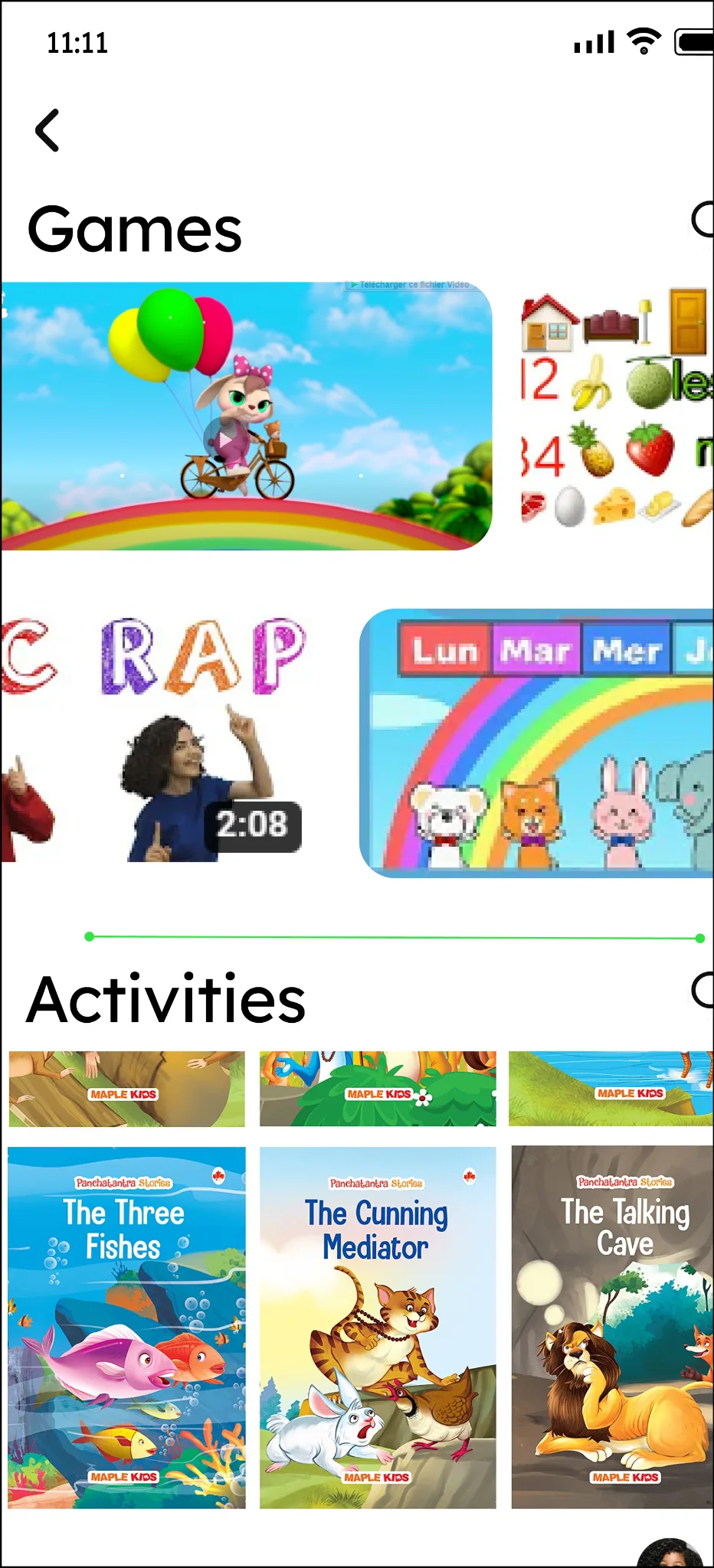
Version 01 · These screens were used in A/B testing to compare interface alternatives and inform the next iteration.
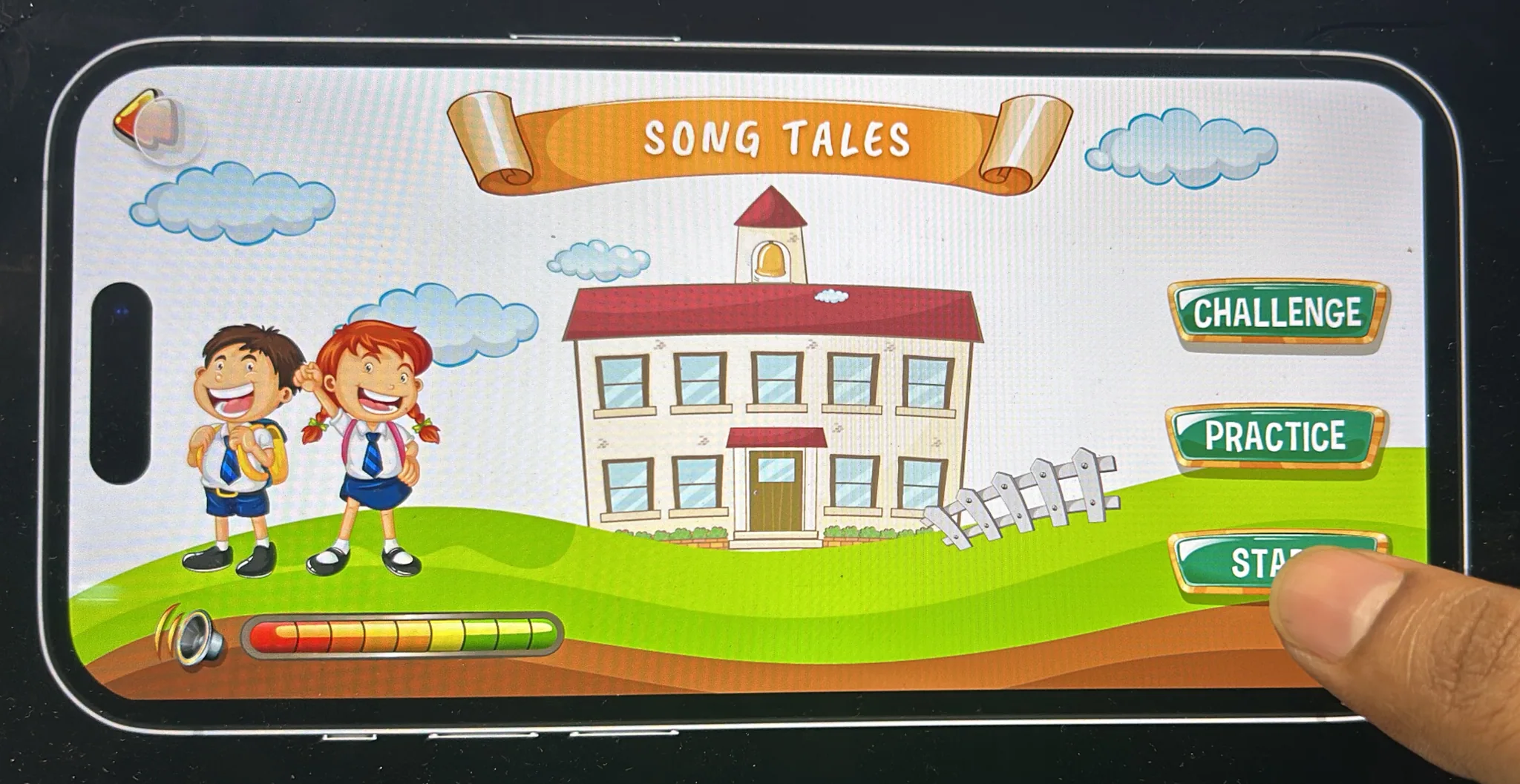
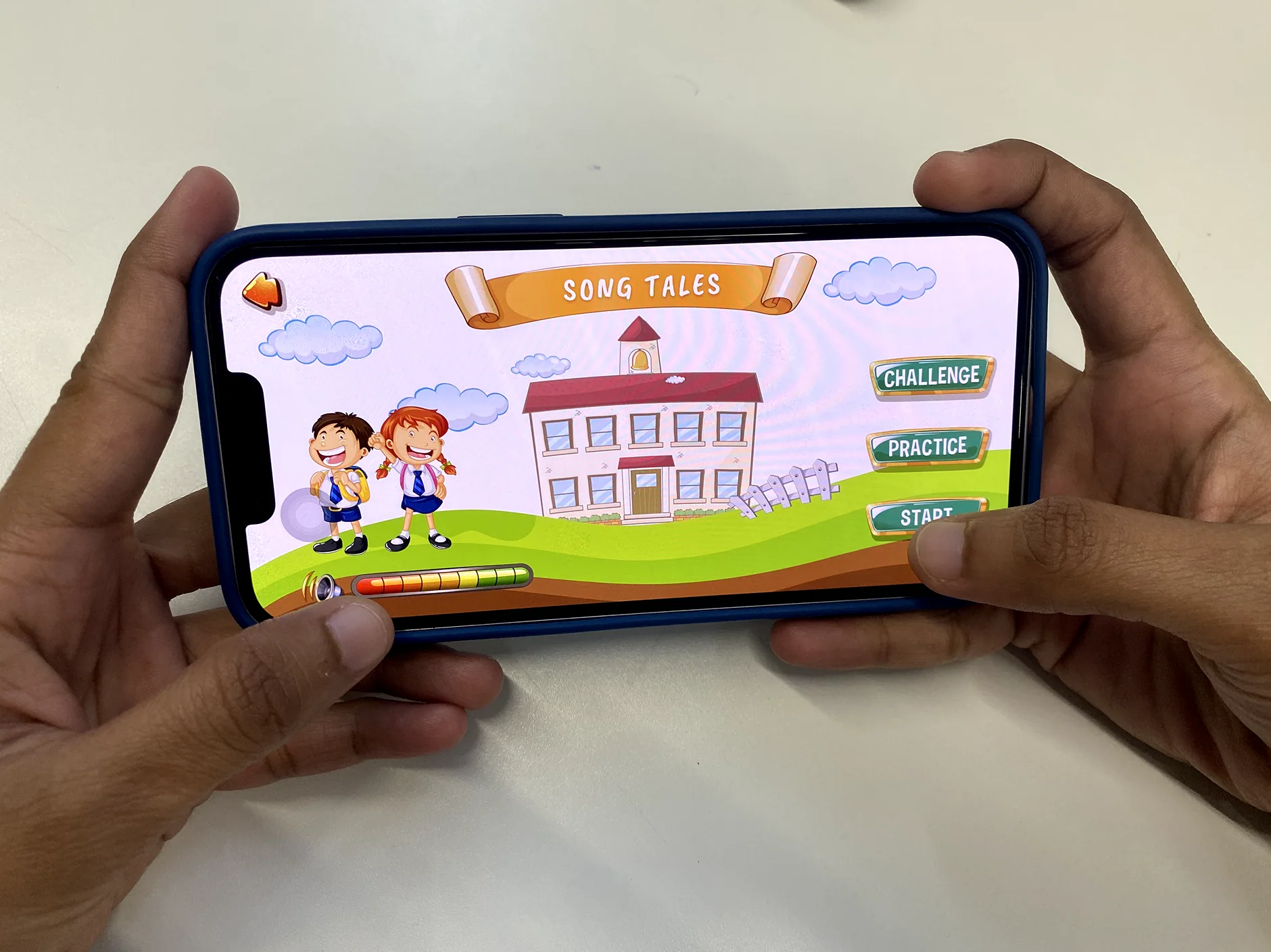
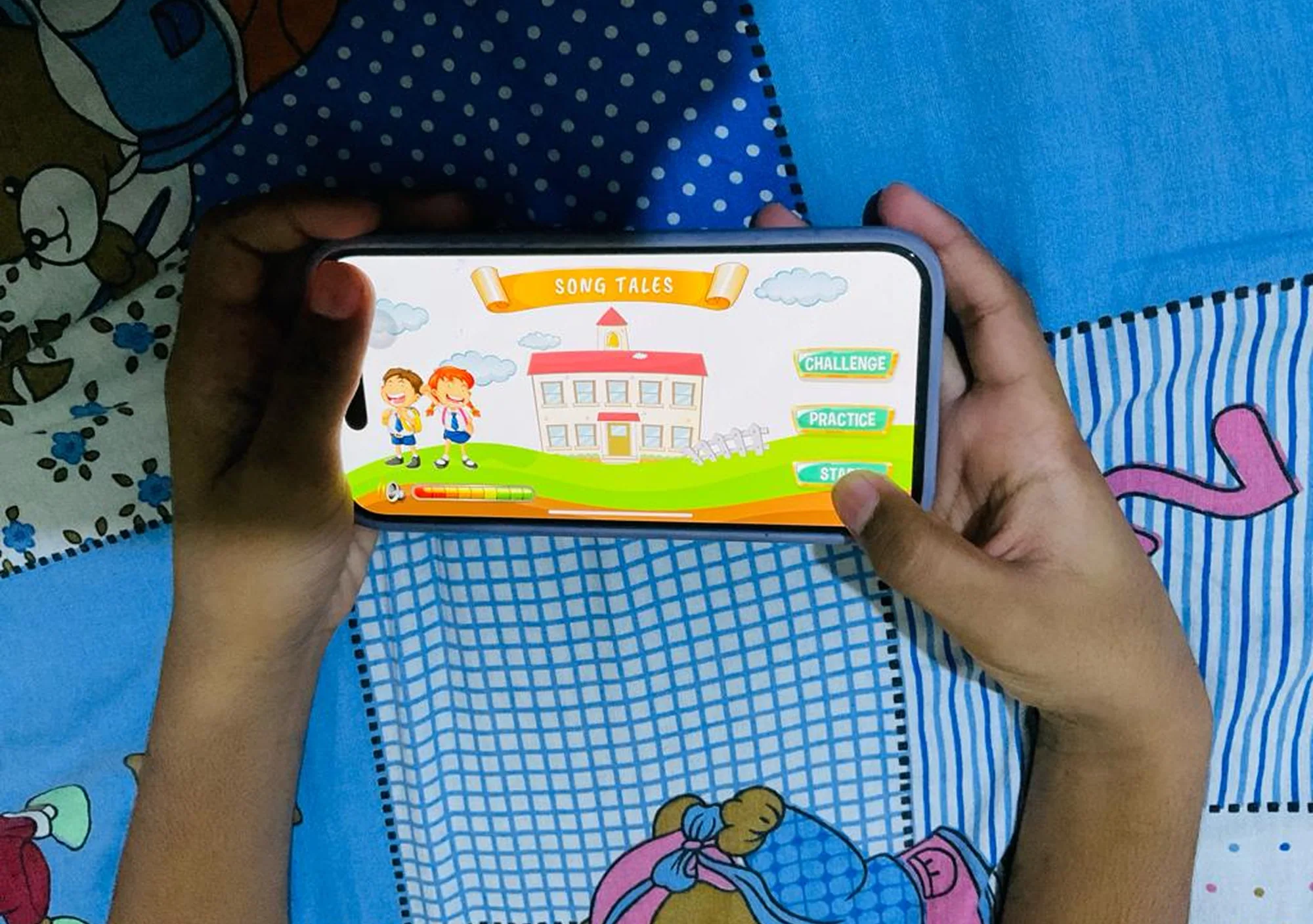
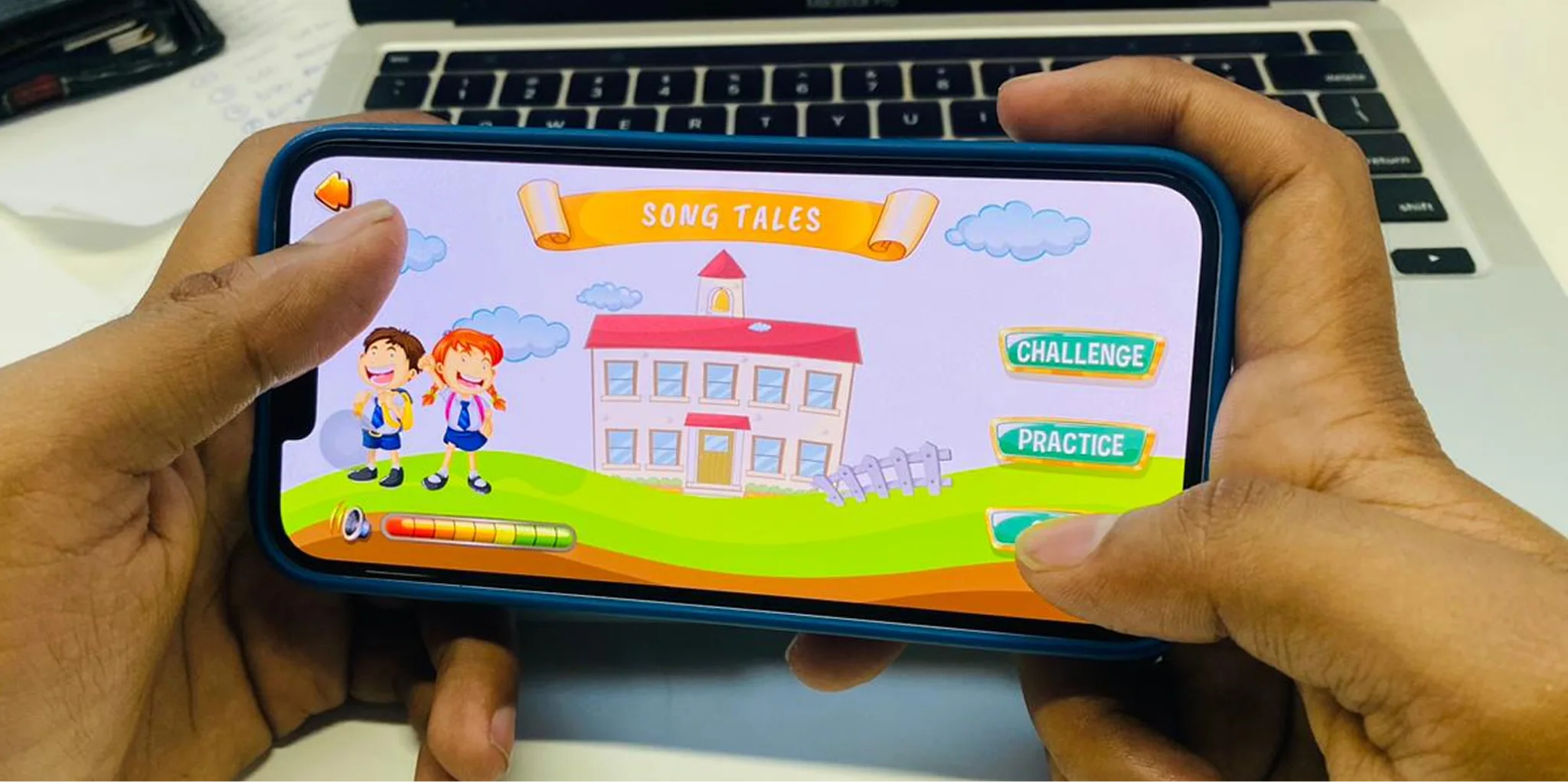
These hands-on sessions explored the Song Tales prototype on a phone, including its Challenge, Practice and Start controls.
The Useberry heat map shows tap locations on the chat, child-profile and account-entry screens.
The case-study board shows an early icon-only action row, followed by labelled Chat, Call and Activities buttons. Adding text makes each action explicit instead of requiring users to interpret icons.
Class Rooms and Staff Members headings move from centred to left-aligned layouts. This creates a shared reading edge with the content below.
The design connects two complementary experiences: adults can manage child information and communication, while learning activities and games provide the child-facing experience. The parent home in the UI file groups My Kids and Teachers; persistent Home, Chat, Games and Profile navigation connects the main destinations.
Start with a child profile, review activities and reports, then contact the teacher through the communication flows.
Work with classrooms, attendance, child information and activity uploads. The UI file also includes reports, chat and call screens.
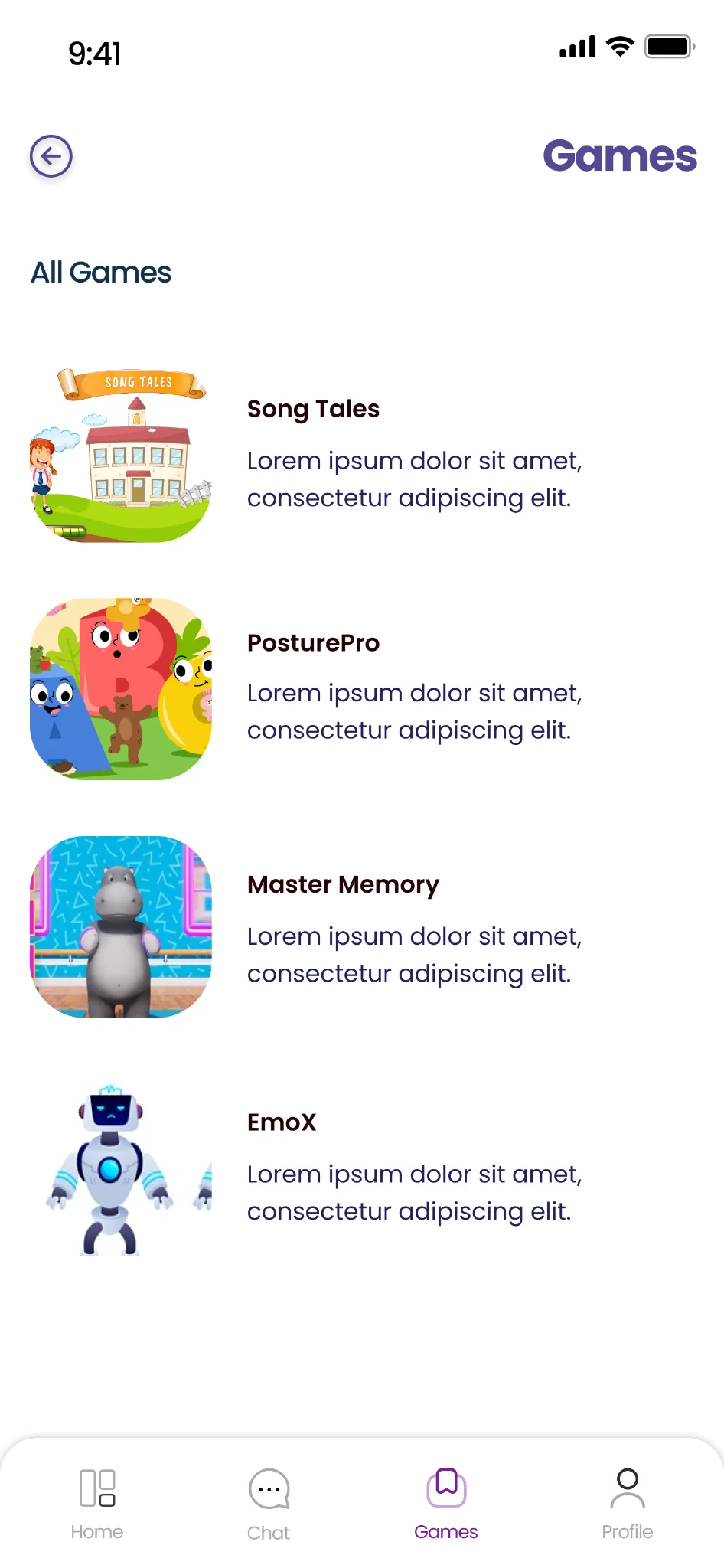
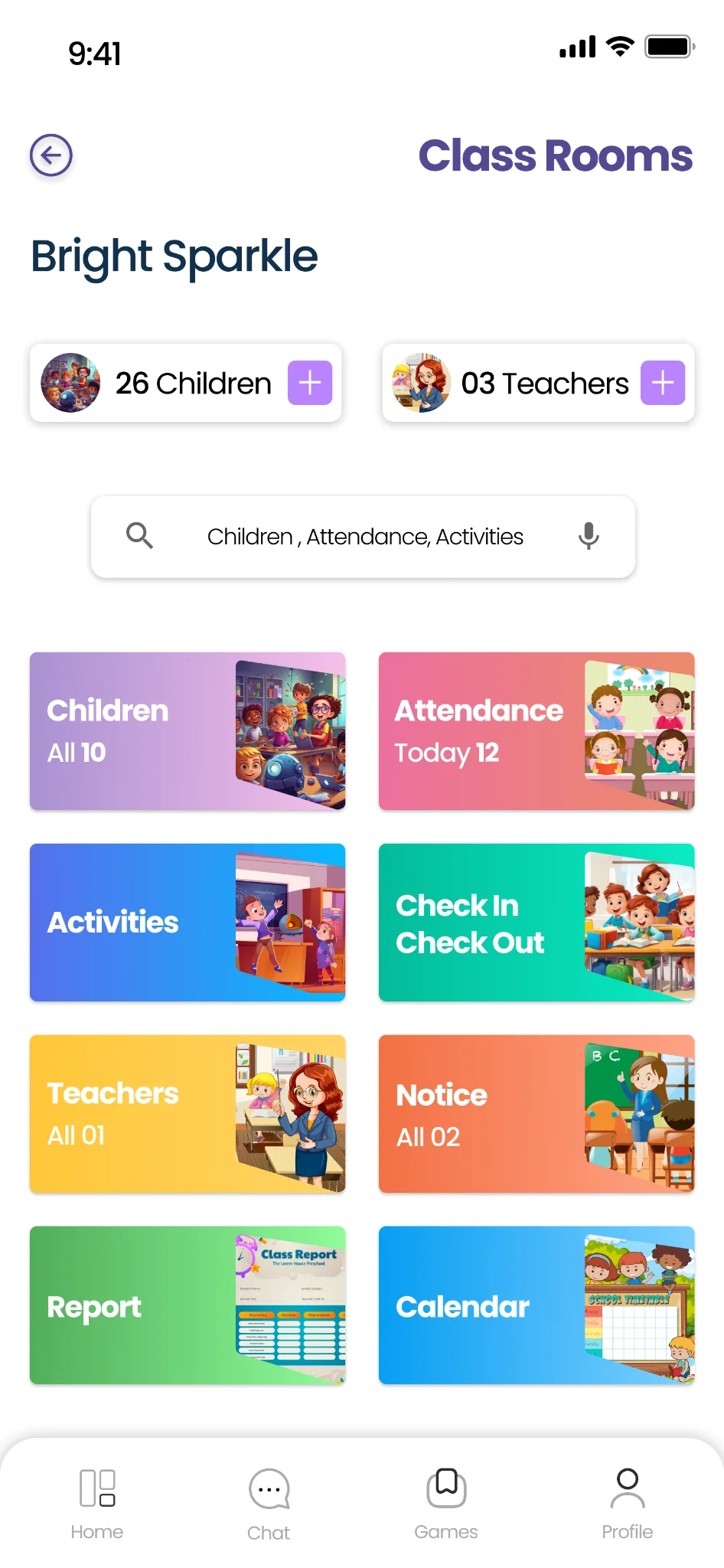
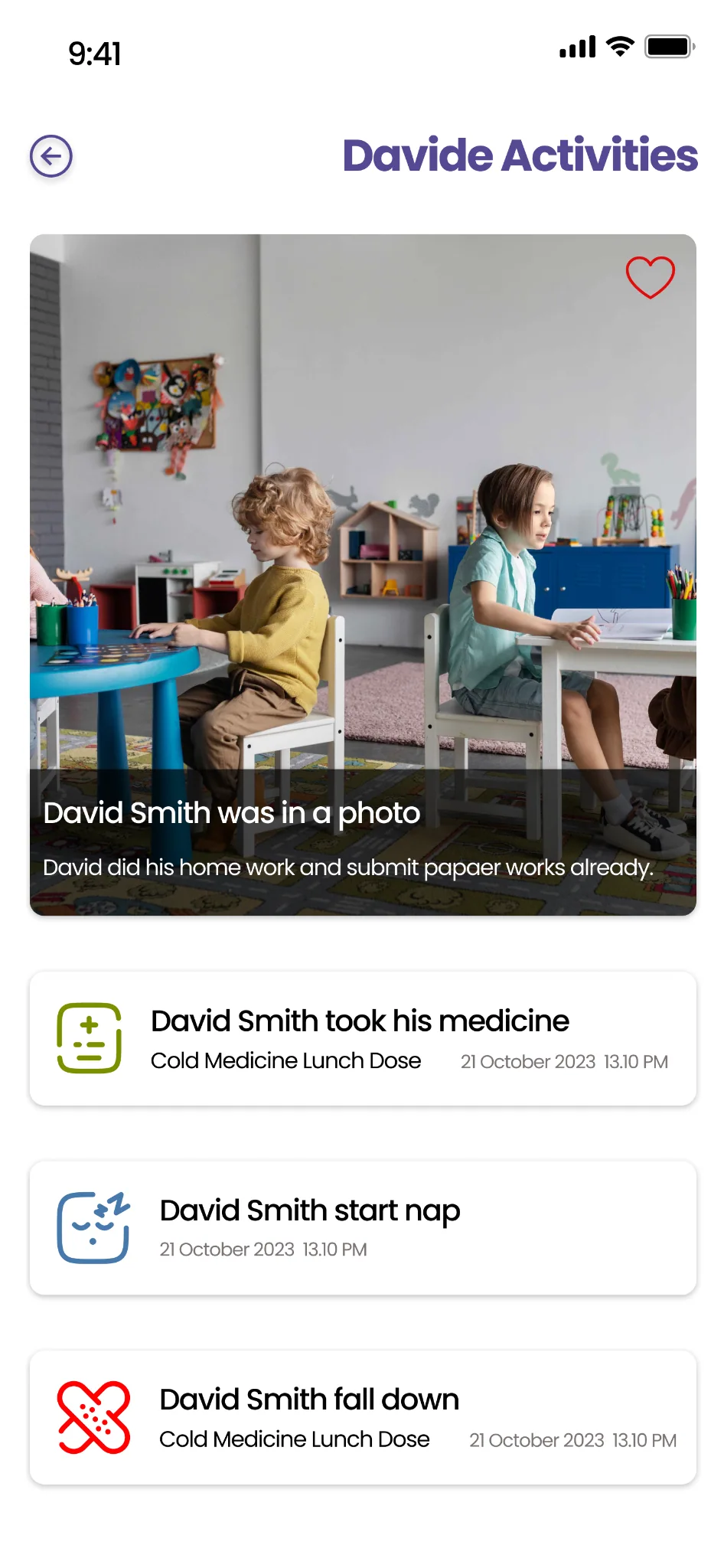
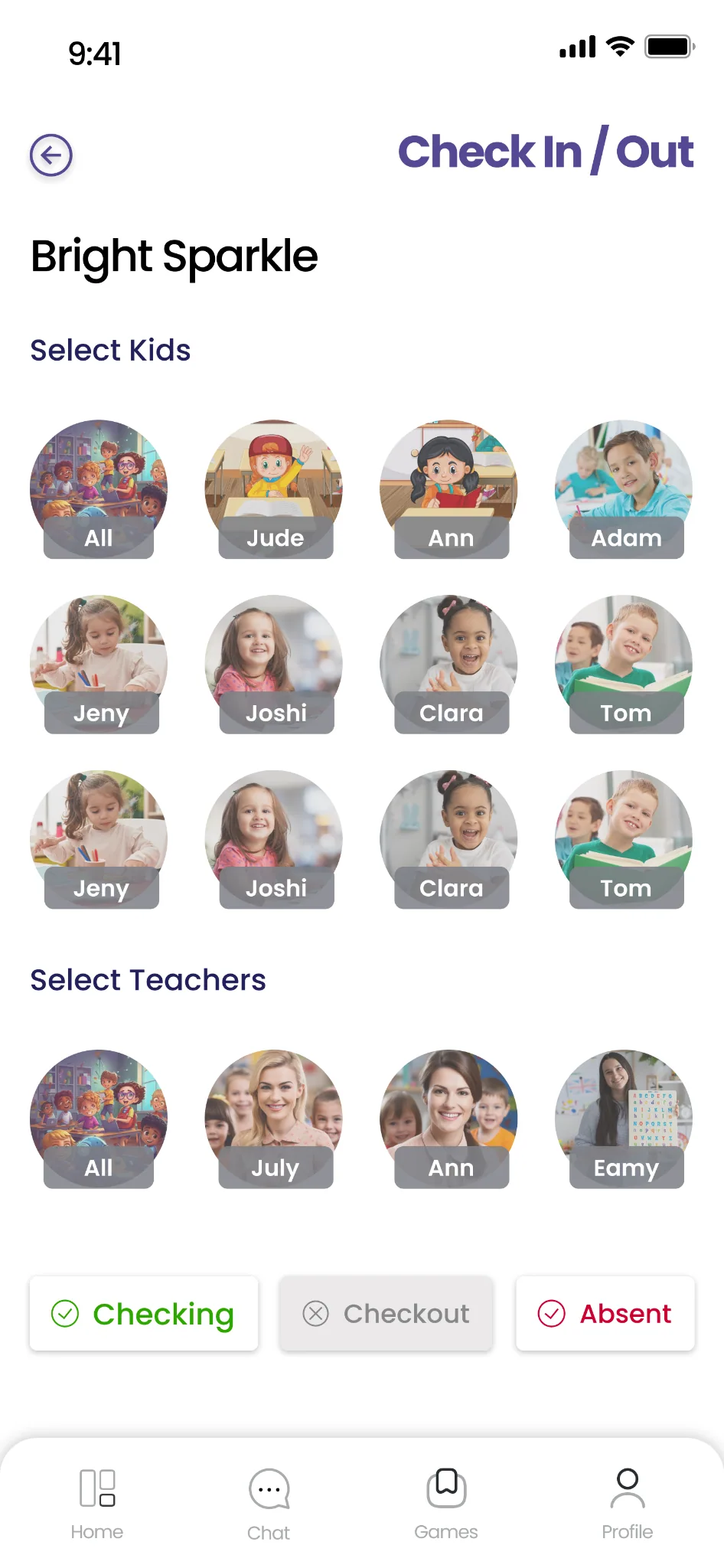
Research artefacts, user flows, wireframes, visual mockups, interactive prototypes and iterative interface versions.
The report documents Flutter development, Firebase and GitLab. These demonstrate project progress rather than a production launch.
Original screens from the Bright Spark UI file. Select a screen to view the full-size image, or explore the interactive prototype below.
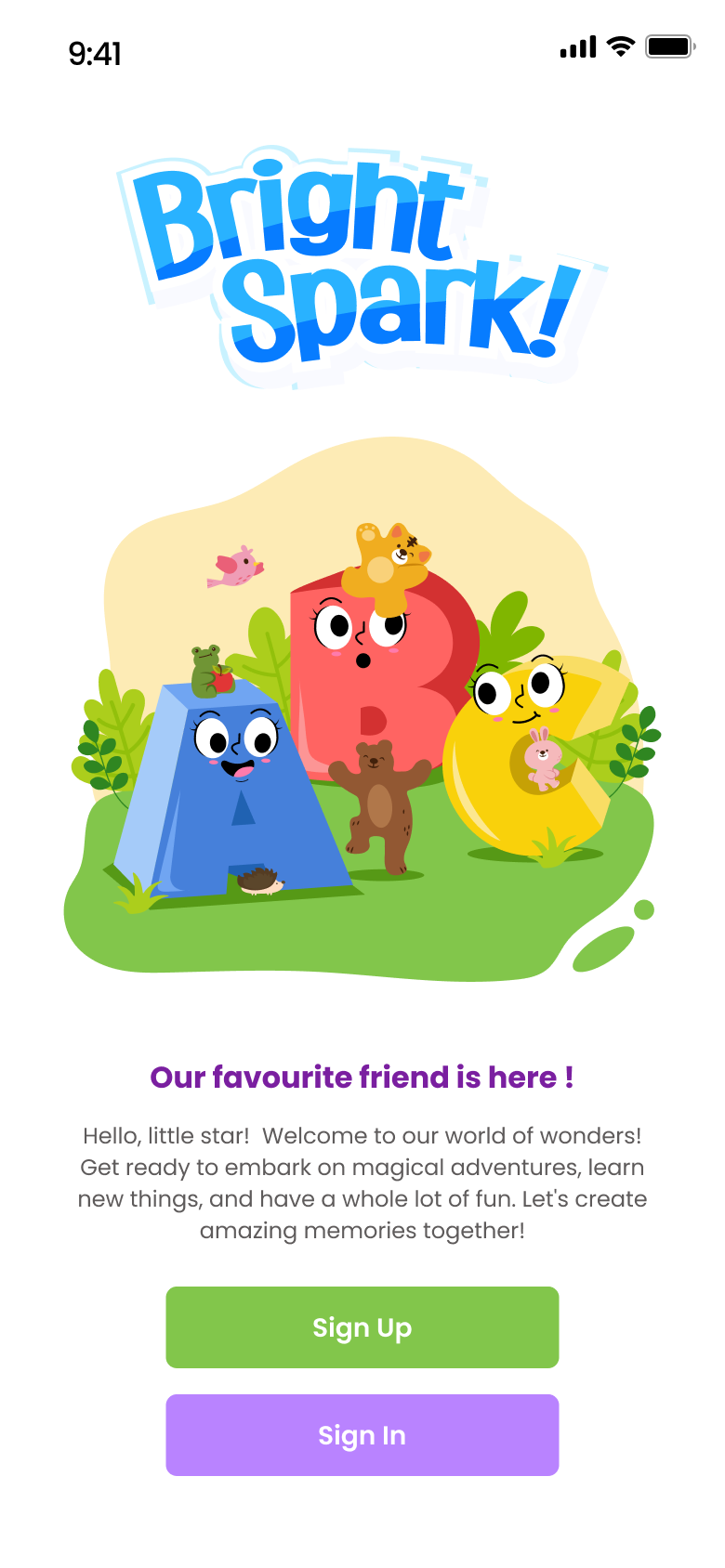
A playful introduction with clear sign-up and sign-in actions.
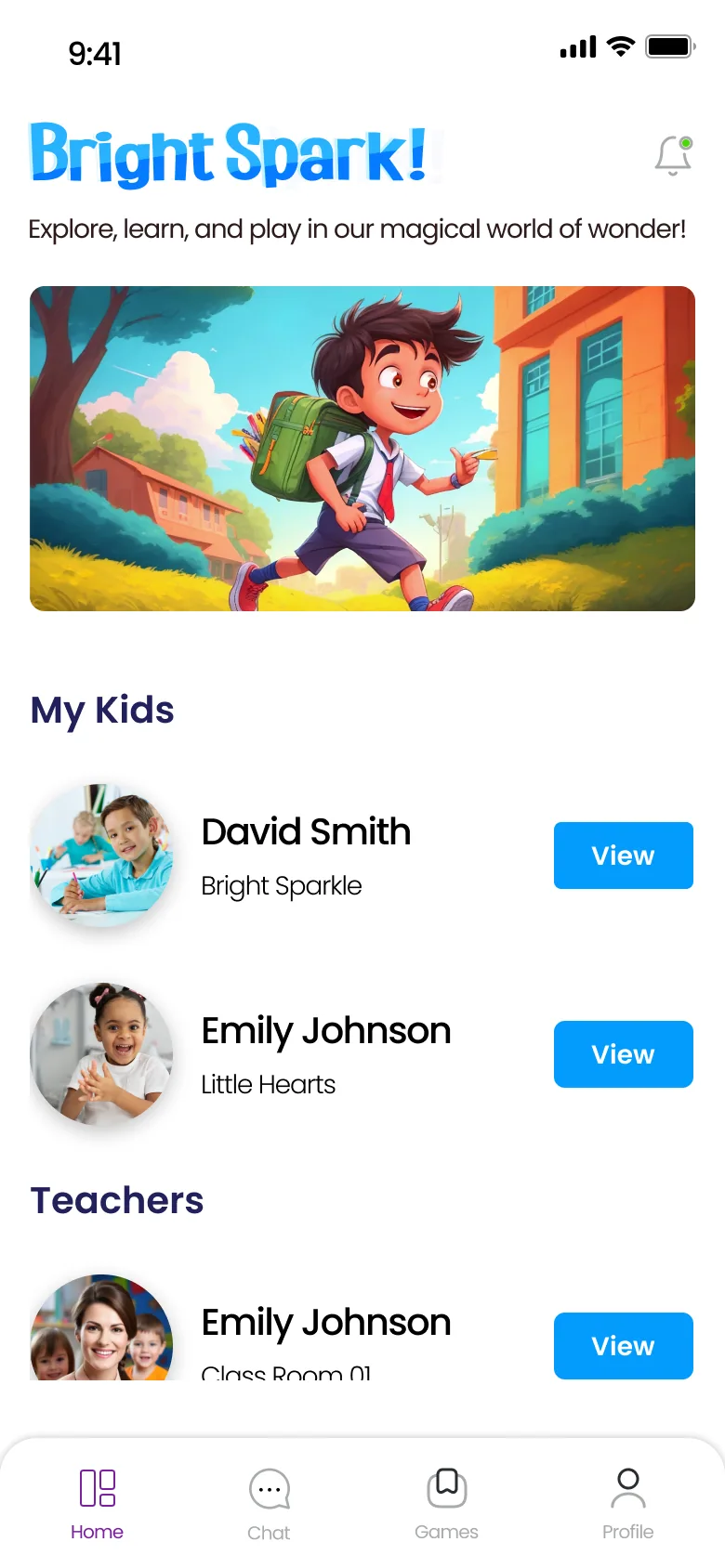
My Kids and Teachers grouped around the parent’s everyday tasks.
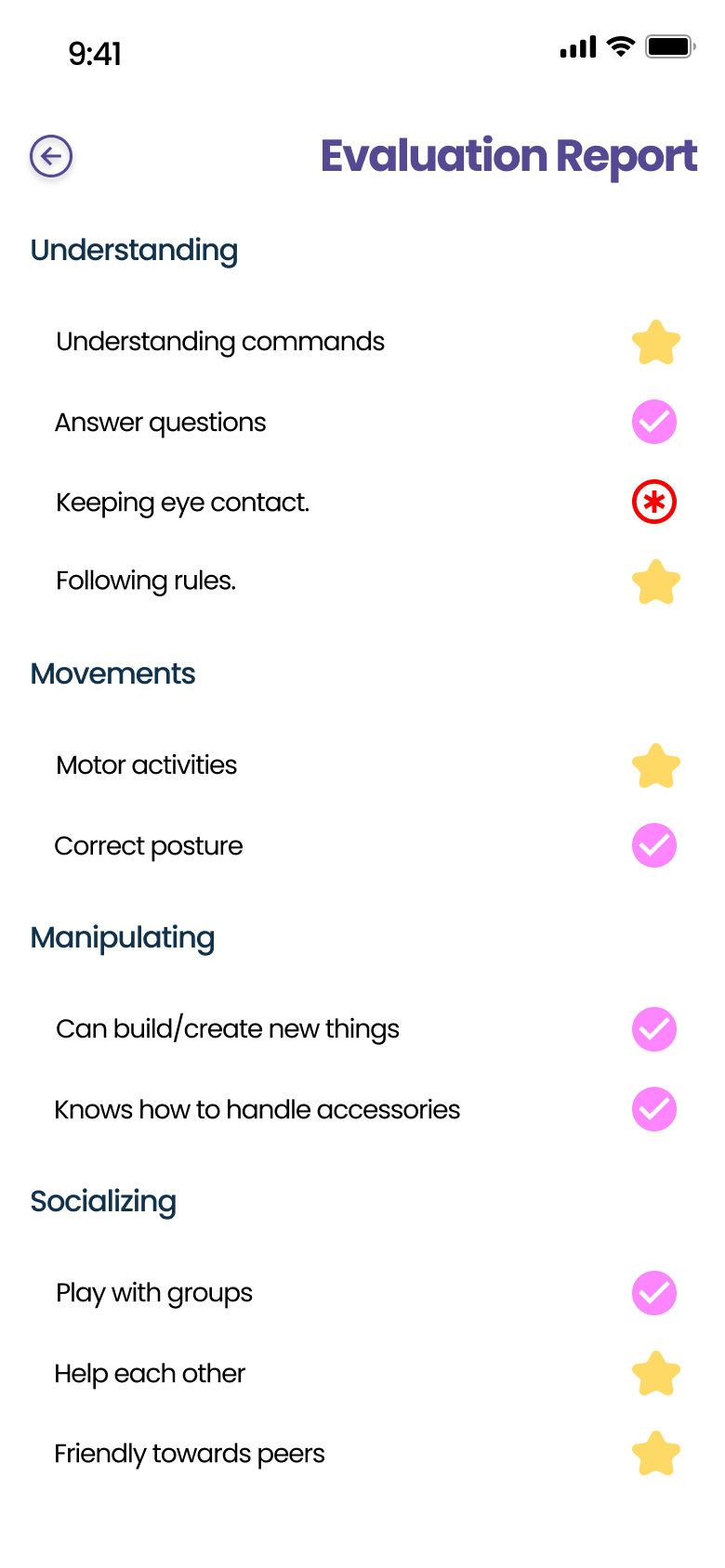
A structured view of observations across development areas.
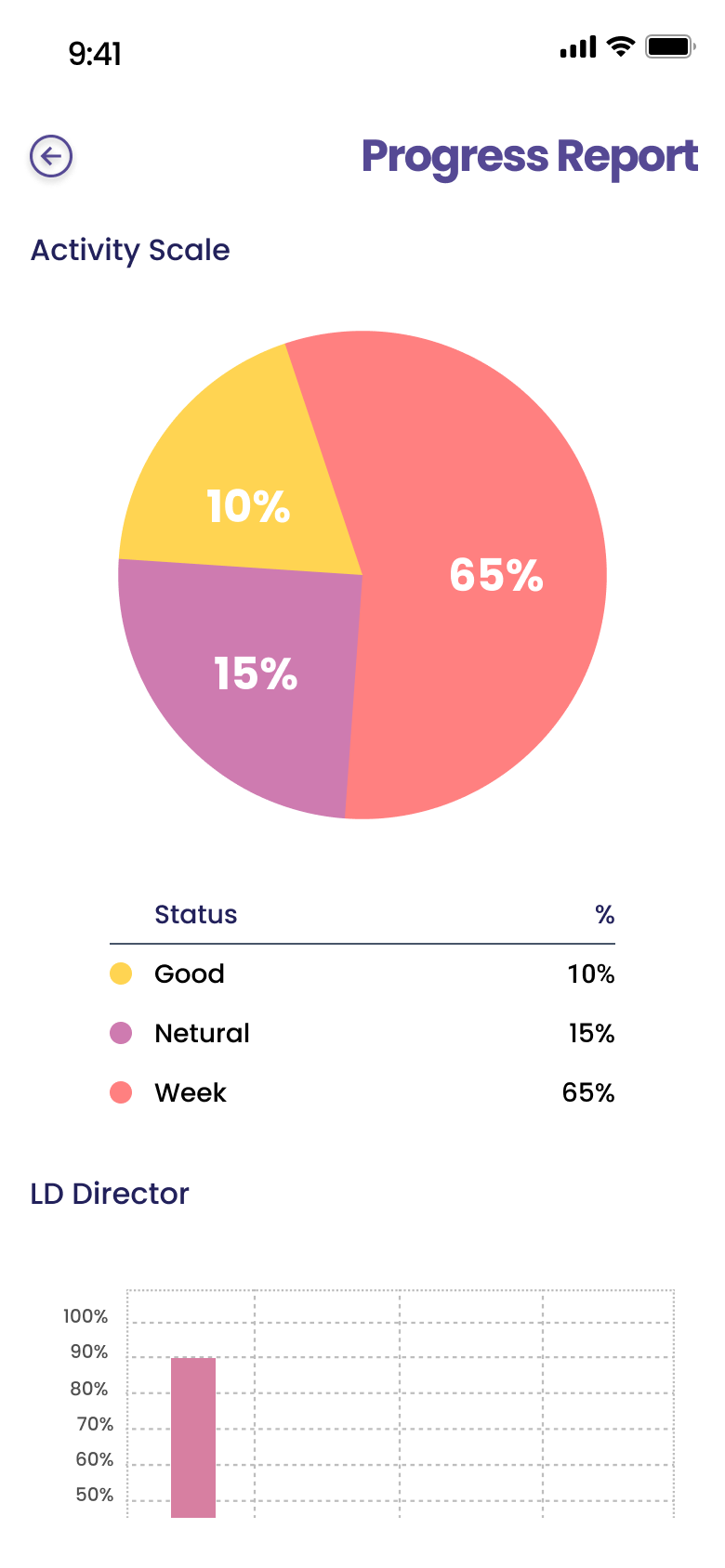
Activity summaries and progress charts help parents follow their child’s development.
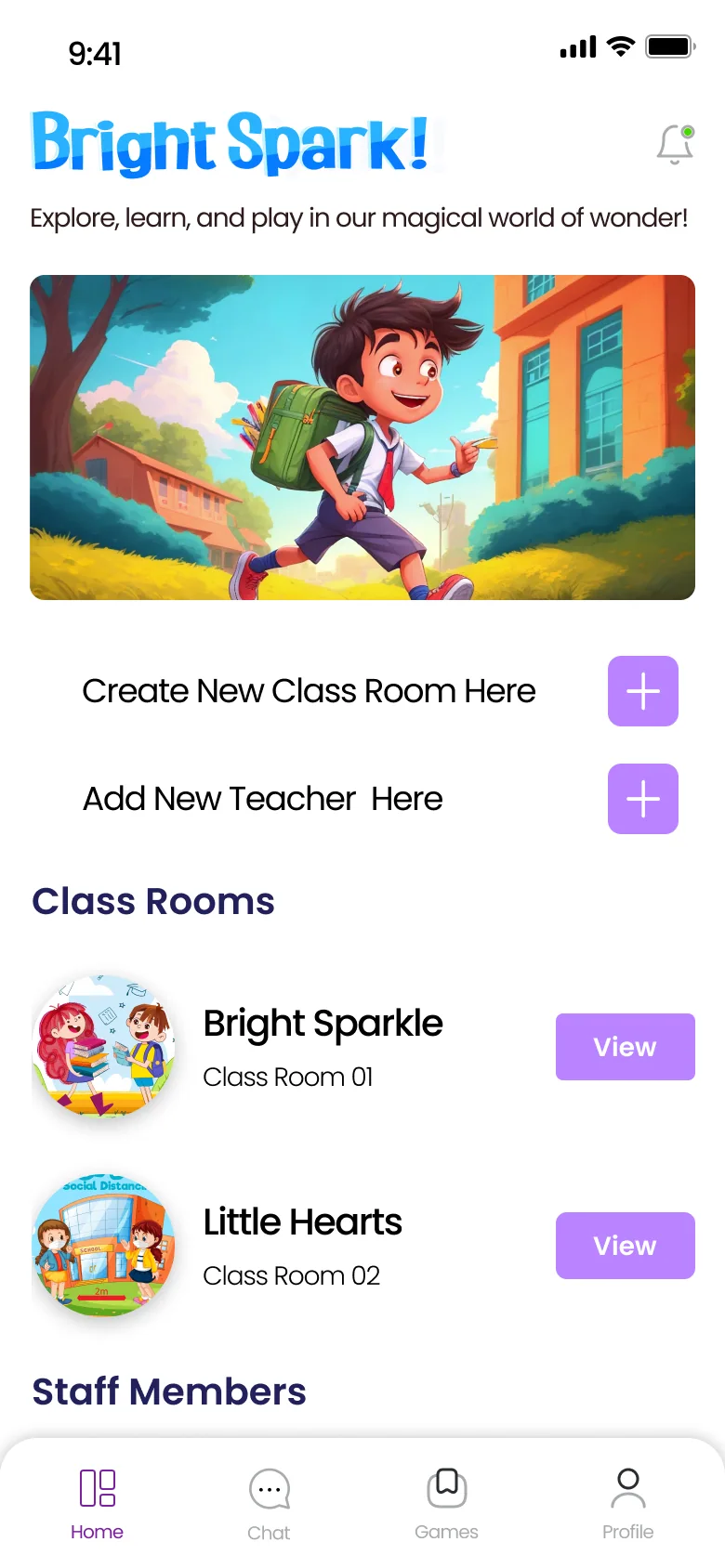
Classrooms and staff gathered in one workspace.
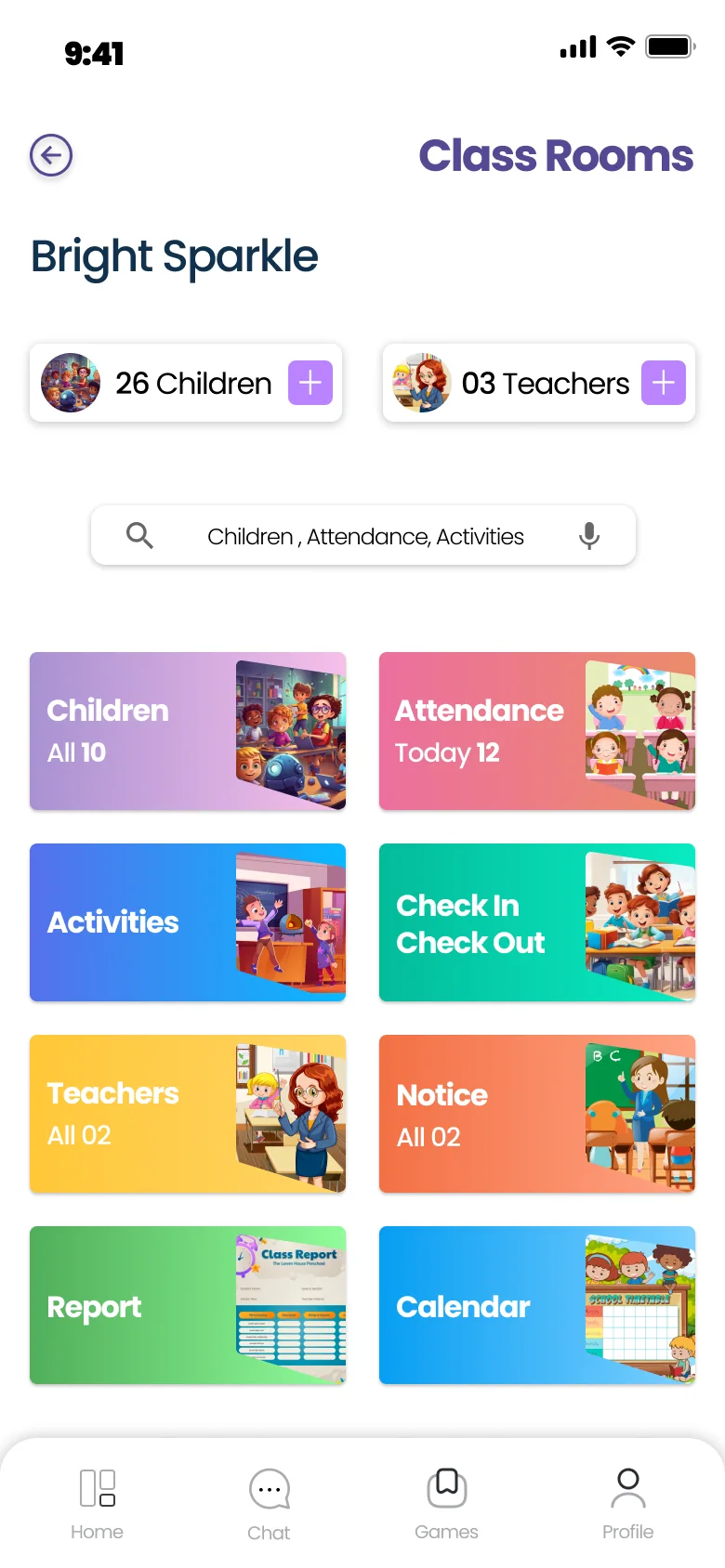
Quick access to children, attendance and classroom tasks.
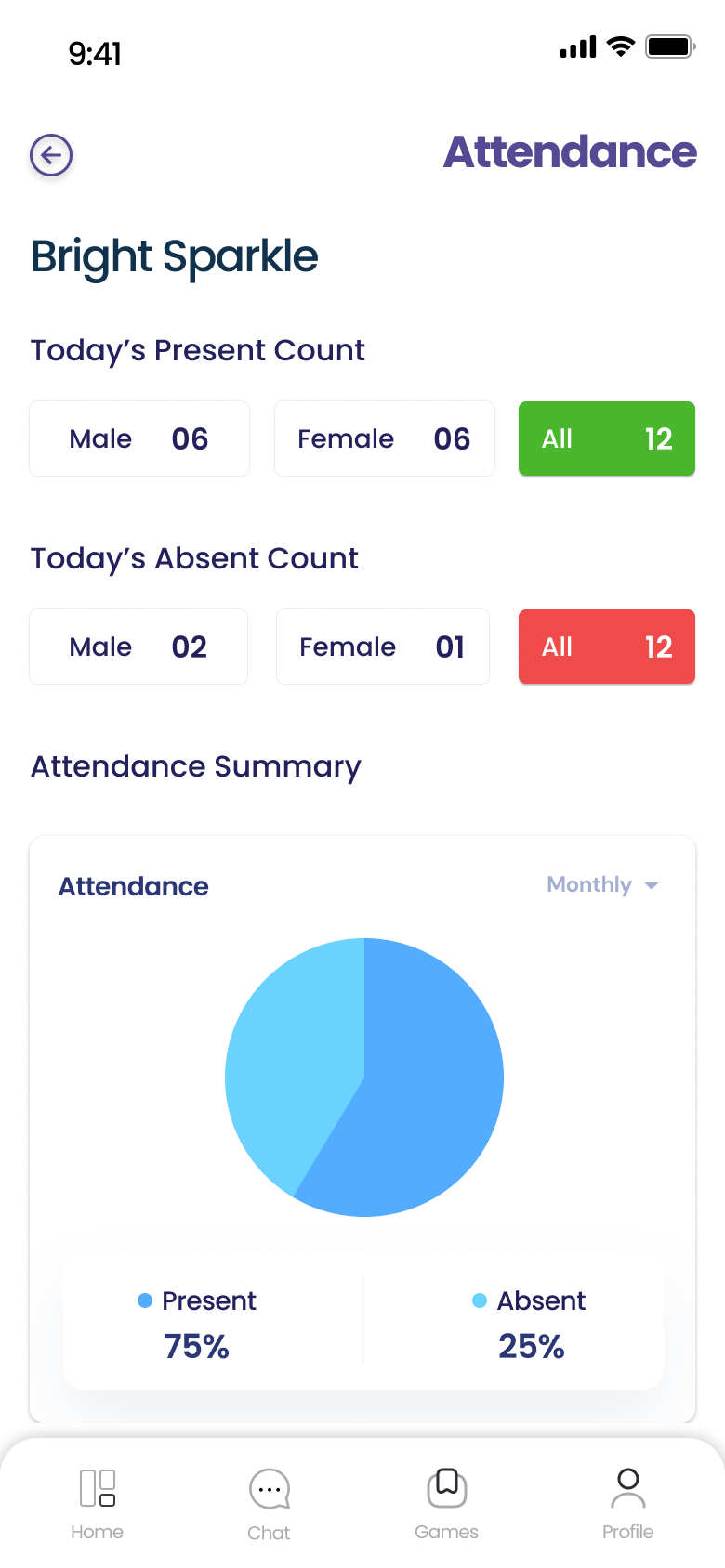
Daily counts and a visual attendance summary.
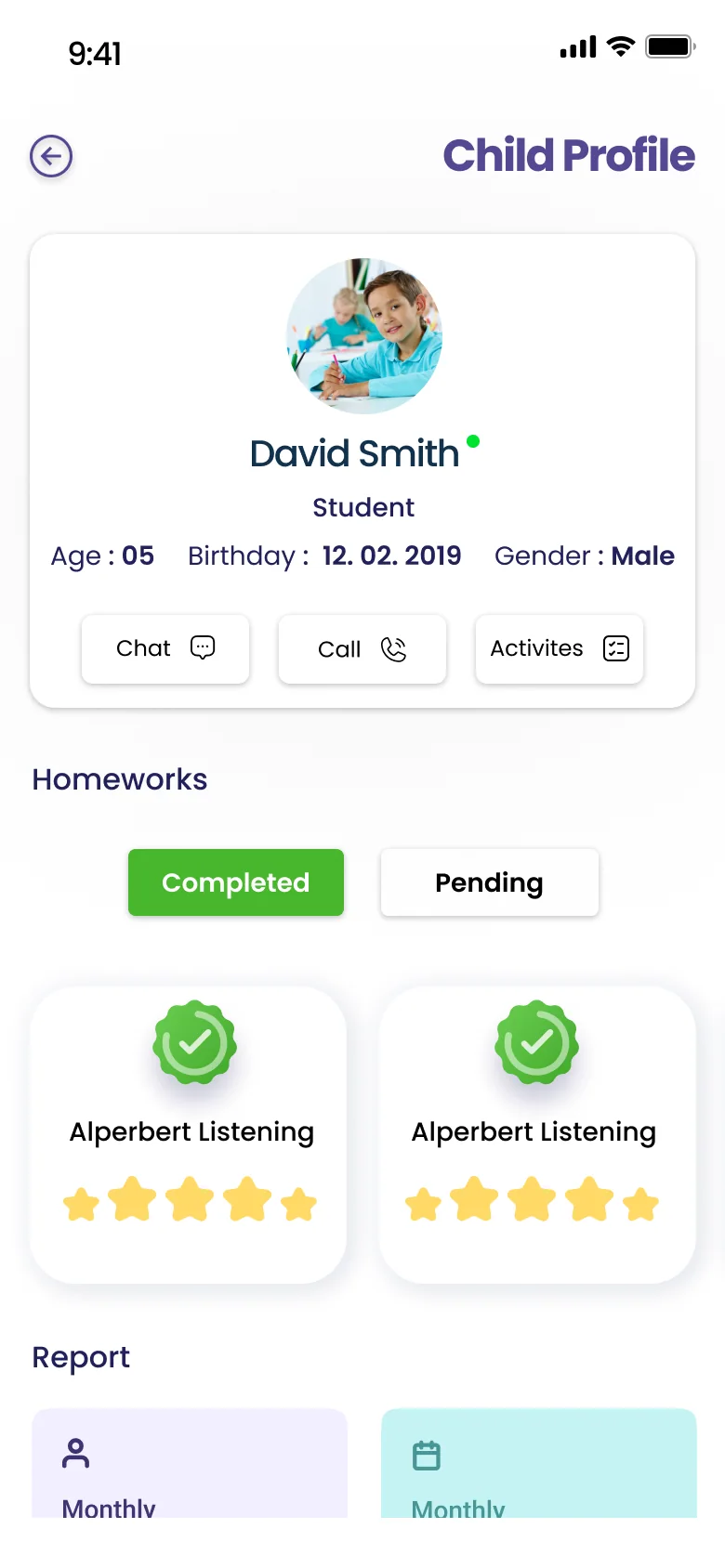
Child details, homework and reports in one place.
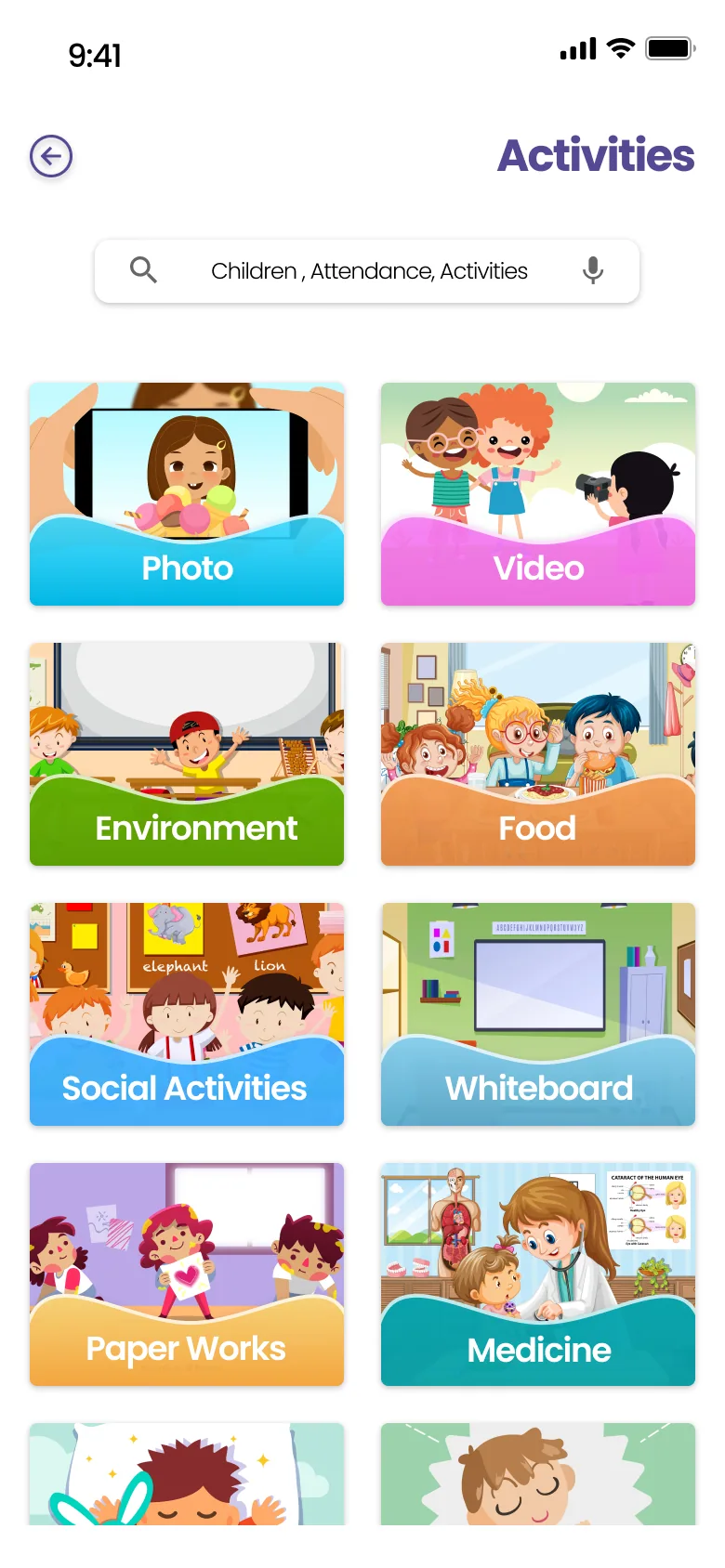
A visual library of classroom activity categories.
This overview organises the patterns already visible in Bright Spark’s interfaces. It describes the existing design rather than claiming a separate component-library audit.
Visual samples from the existing teacher interface; these are not a documented Figma token collection.
Repeat clear labels and rounded controls for creating and viewing content.
Group the classroom illustration, name and action in one familiar pattern.
Home, Chat, Games and Profile provide consistent entry points.
Reusable information groups connect child details, attendance and progress.
Bright Spark produced a child-focused interface concept, prototypes and implementation-stage screens informed by research and stakeholder participation. The strongest supported outcome is the connection between developmental considerations and concrete interface exploration.
Cognitive, emotional and physical considerations need to shape interactions as well as illustration and colour.
Parents, teachers and children share a goal, but their tasks require different priorities.
Run a supervised usability study with clearly defined tasks for each audience. Record completion, time, errors and assistance needed; compare controlled variants and capture qualitative feedback. Evaluate comprehension, accessibility, privacy and report clarity before making wider product claims.