← All projects
CASE STUDY 04 / Architecture & interiors · UX/UI

From a dream home to a clearer plan.

Capex — an architecture and interiors design exploration centred on floor plans and bringing a home to life.

Project
Capex
Platform
Website
Focus
Architecture & interiors
Discipline
UX/UI design
CAPEX / ARCHITECTURE & INTERIORS
Dream it.
Make room for it.
dream. plan. reality.
01 / PROJECT OVERVIEW

From an idea to a clearer project brief.

Capex connects architectural inspiration, floor-plan discovery and project estimation. Visitors can explore possibilities, define a scope and prepare an enquiry in one coherent experience.

THE CHALLENGE

Different building projects require different questions. Help visitors understand their options without overwhelming them.

THE APPROACH

Connect browsing to planning through clear categories, visible stages and a contextual estimate summary.

02 / USER JOURNEY

From inspiration to a useful enquiry.

Visitors can explore first through floor plans, or define first through project pricing. Both routes converge on scope, estimate review and contact.

Explore. Define. Discuss.

Scenario: a homeowner planning an ADU, conversion or home project.

  1. 01Discovery

    Find a direction

    User action
    Explore the homepage or architectural gallery.
    User question
    What could I build?
    Anticipated concern
    The options may feel unfamiliar.
    Design response
    Introduce clear routes into floor plans and project pricing.
    Touchpoint
    Homepage · Gallery
  2. 02Comparison

    Explore floor plans

    User action
    Search, filter and review a plan’s details.
    User question
    Which plan fits my needs?
    Anticipated concern
    Size, layout and specifications can be difficult to compare.
    Design response
    Group plan imagery, key specifications and detail actions consistently.
    Touchpoint
    Floor Plans · Plan details
  3. 03Project definition

    Describe the project

    User action
    Choose a project type and answer the relevant scope questions.
    User question
    What information does my project need?
    Anticipated concern
    Generic questions can add unnecessary work.
    Design response
    Use a shared step structure with questions specific to the selected project.
    Touchpoint
    Pricing · Project steps
  4. 04Estimate review

    Understand the breakdown

    User action
    Review package choices, additional services and the estimate summary.
    User question
    What is included in this estimate?
    Anticipated concern
    Costs need context before an enquiry.
    Design response
    Keep the breakdown beside the choices and provide a detailed-list action.
    Touchpoint
    Estimate summary · Detailed List
  5. 05Enquiry

    Start a conversation

    User action
    Email the quote or contact the studio.
    User question
    How can I discuss the next step?
    Anticipated concern
    Visitors may still need personalised guidance.
    Design response
    Offer visible enquiry routes and a useful summary to support discussion.
    Touchpoint
    Email Quote · Studio · Contact
Proposed journey derived from the requirements and flow diagrams. Questions and concerns are assumptions to validate through research.

Open the original user flow

03 / INFORMATION ARCHITECTURE

Two routes, one planning framework.

Pricing, Floor Plans, Gallery and Company support different levels of readiness. The original architecture also identifies FAQs and studio information as supporting destinations.

Explore first

Homepage → floor-plan search → plan details → pricing → studio or contact. Visitors can return to the catalogue to compare more plans.

Define first

Select a project type, answer relevant questions, then review the estimate. Paths cover ADUs, garage conversions, homes, additions, remodels, feasibility and pre-approved plans.

Open the information architecture

04 / DESIGN

A closer look at the interface.

The interface connects visual discovery with practical decisions about a building project.

Landing

Architectural imagery introduces the offer, while service highlights and a consultation action give visitors a clear next step.
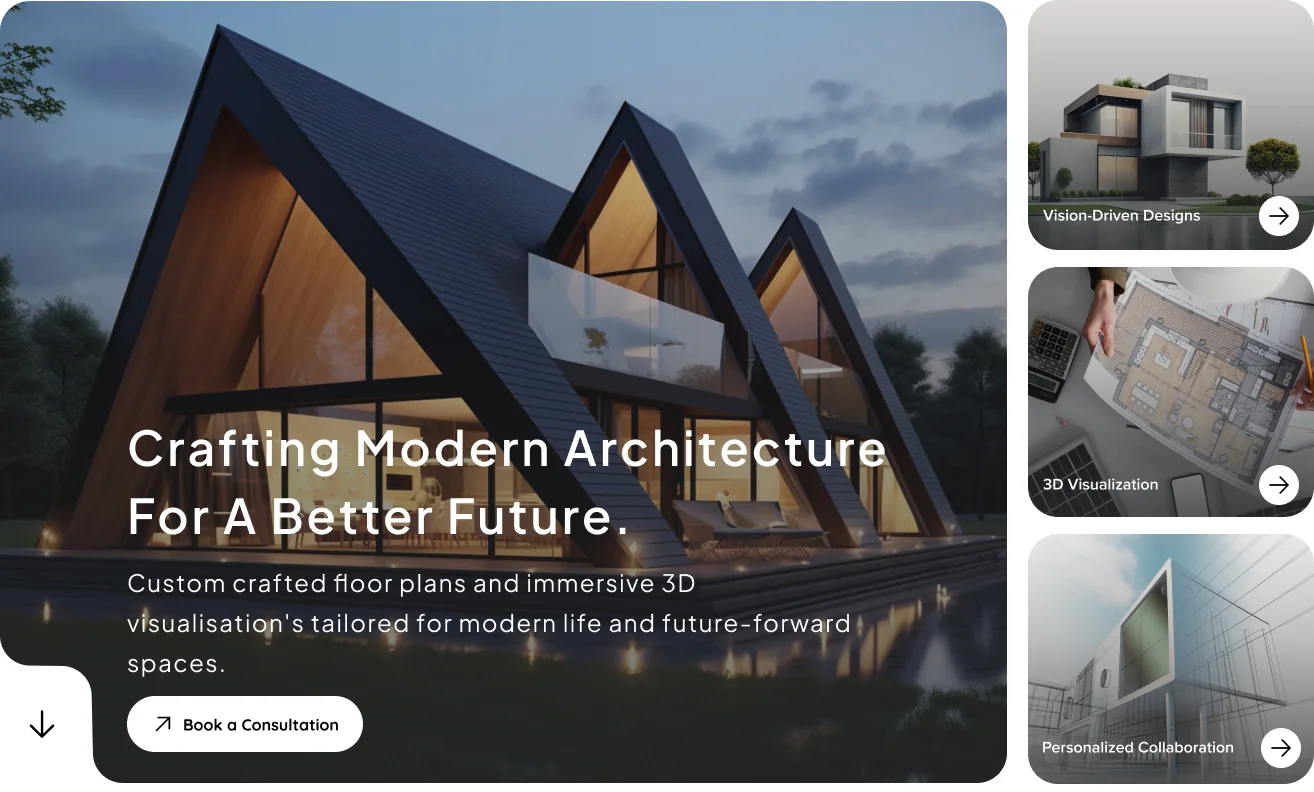
Landing interface in the Capex design

Project estimation

Project stages, visual package choices and a visible cost breakdown keep each decision in context. The figures shown are sample design content.
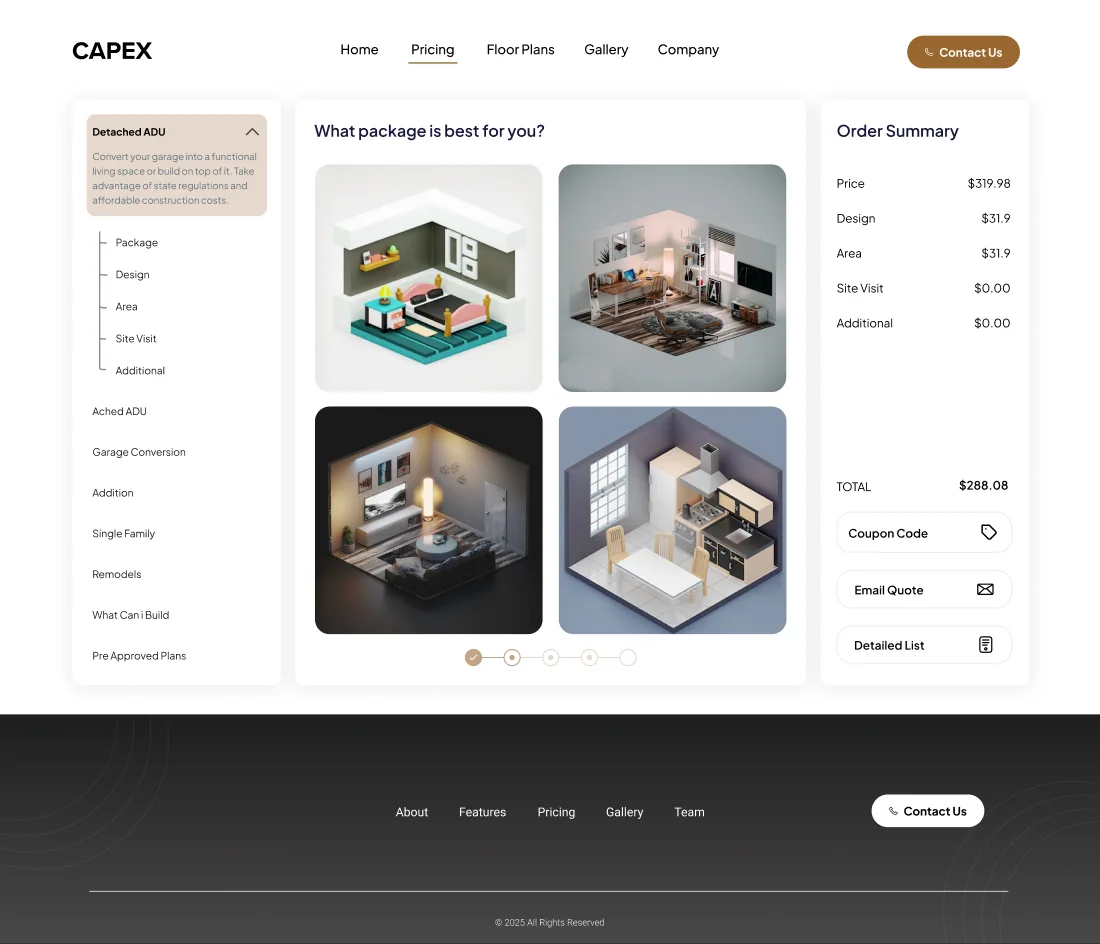
Project estimation interface in the Capex design

Floor-plan discovery

Search, filters and repeatable cards help visitors compare plans. Separate detail and estimate actions connect discovery with planning.
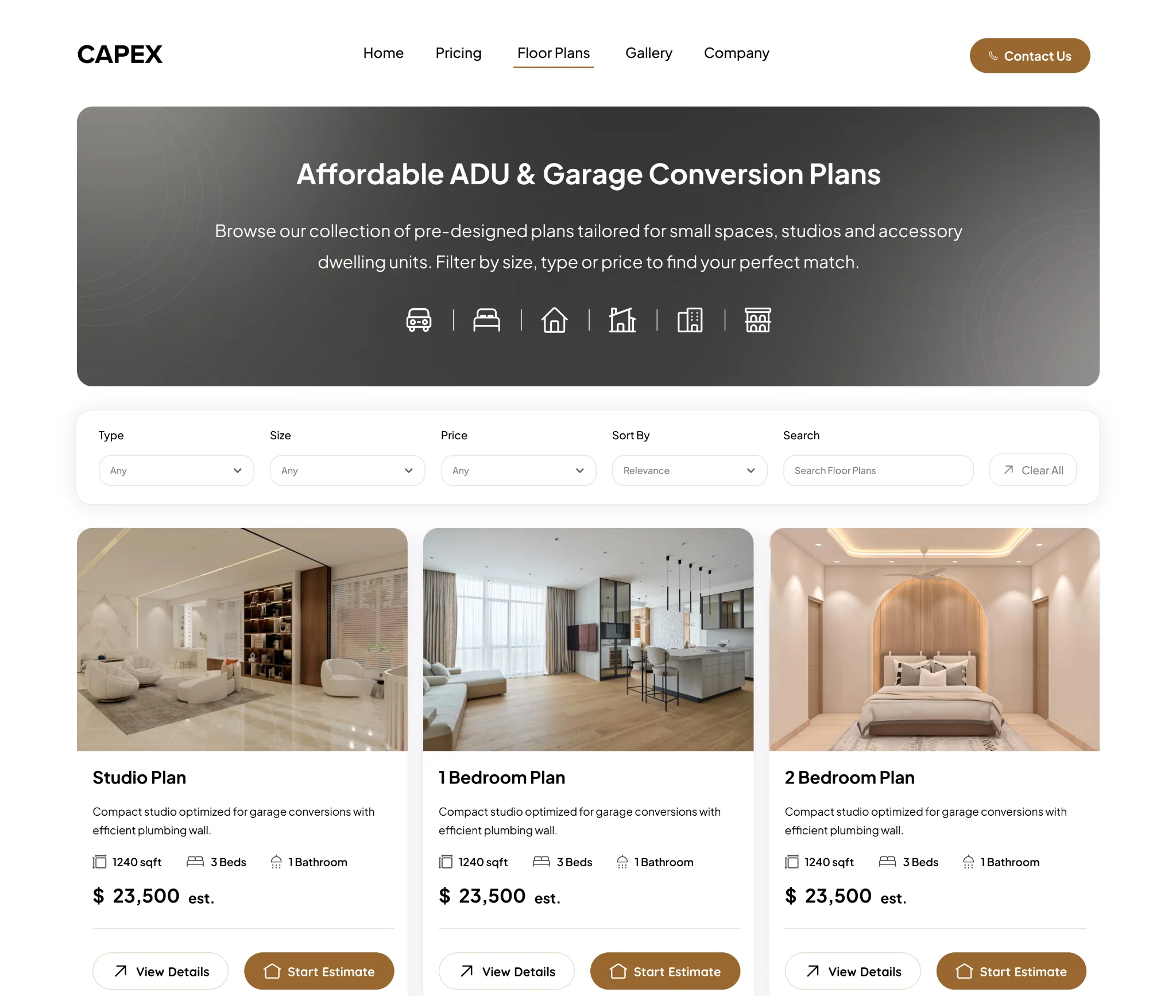
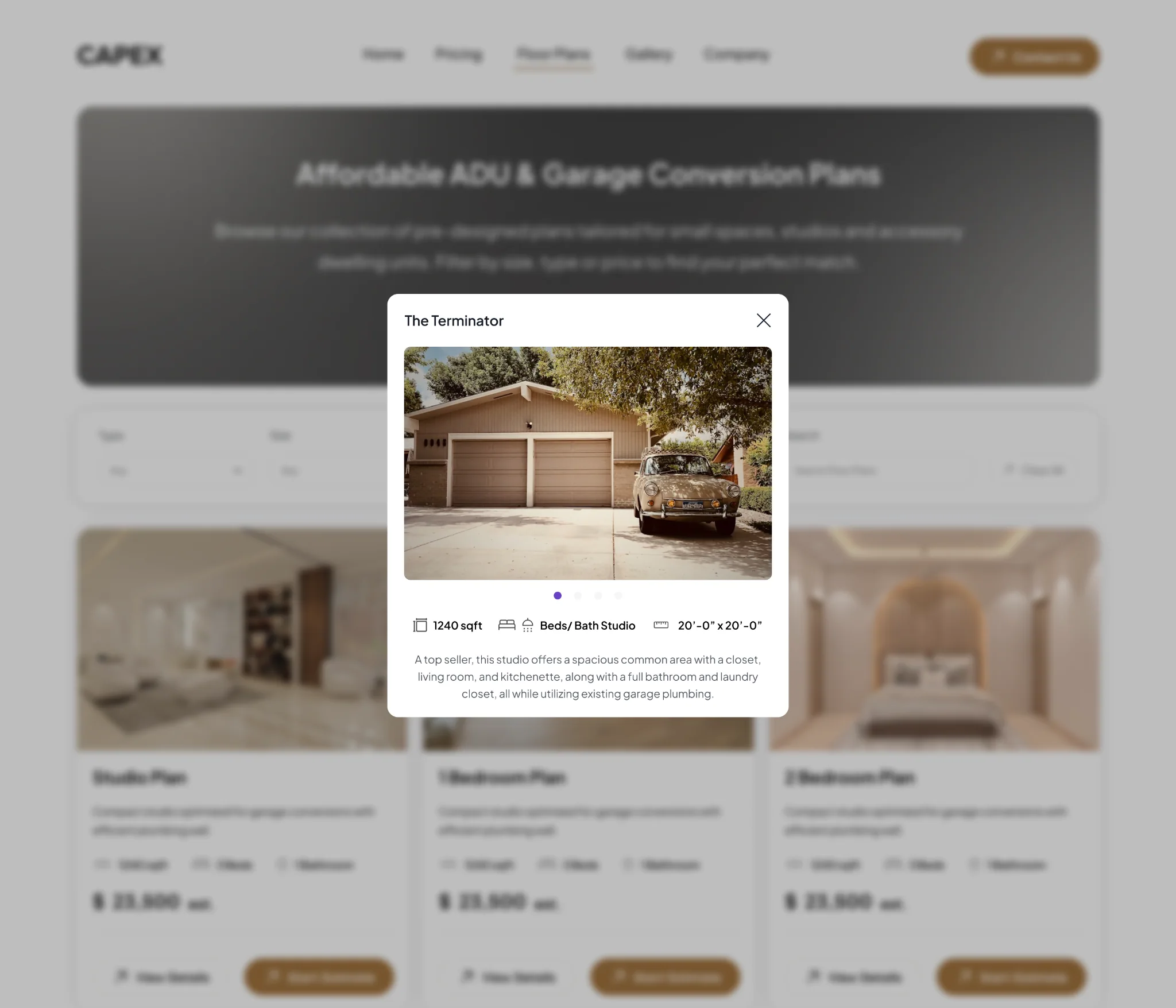
Capex floor-plan browsing interface
Capex floor-plan details popup
05 / RESPONSIVE DESIGN

Adapt the layout, preserve the purpose.

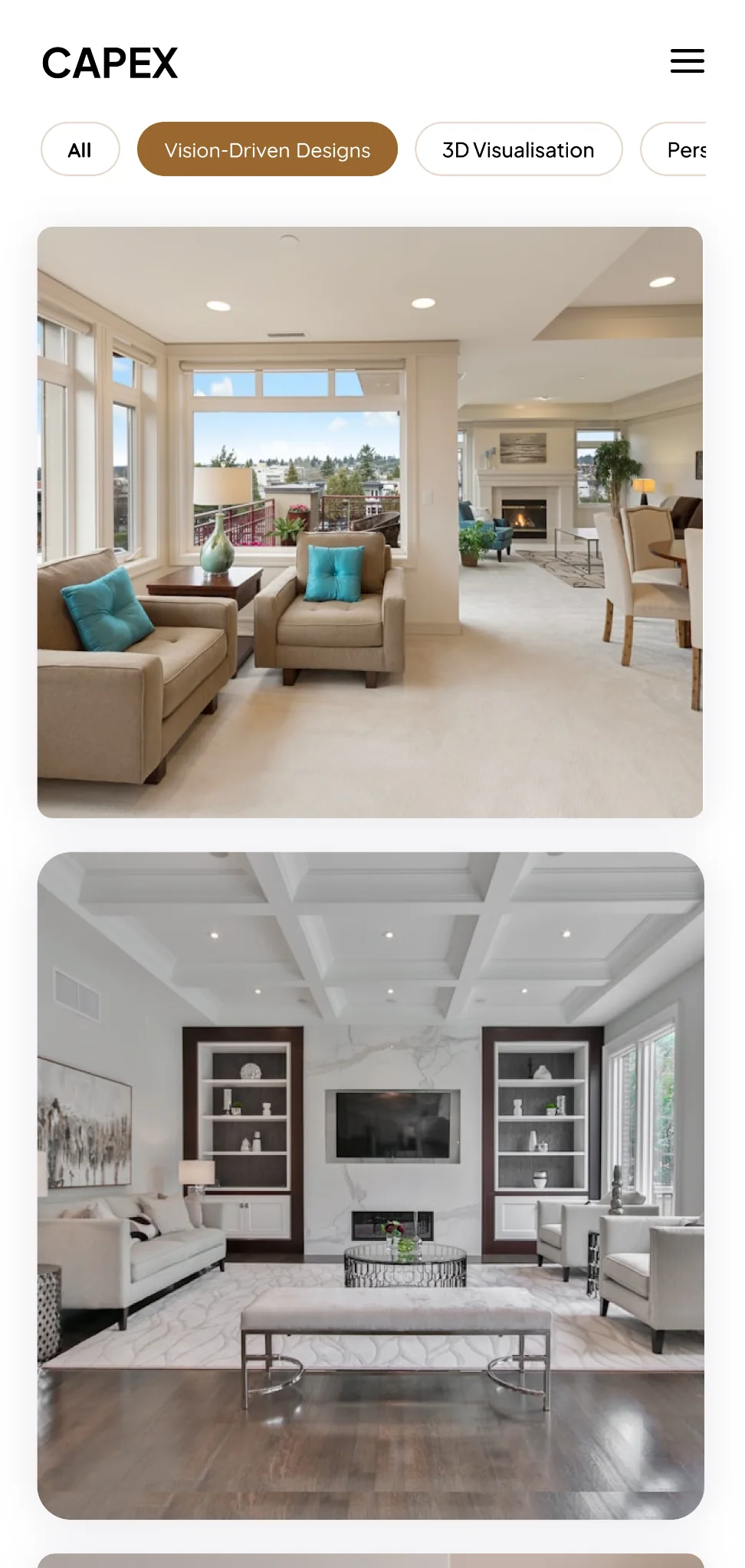
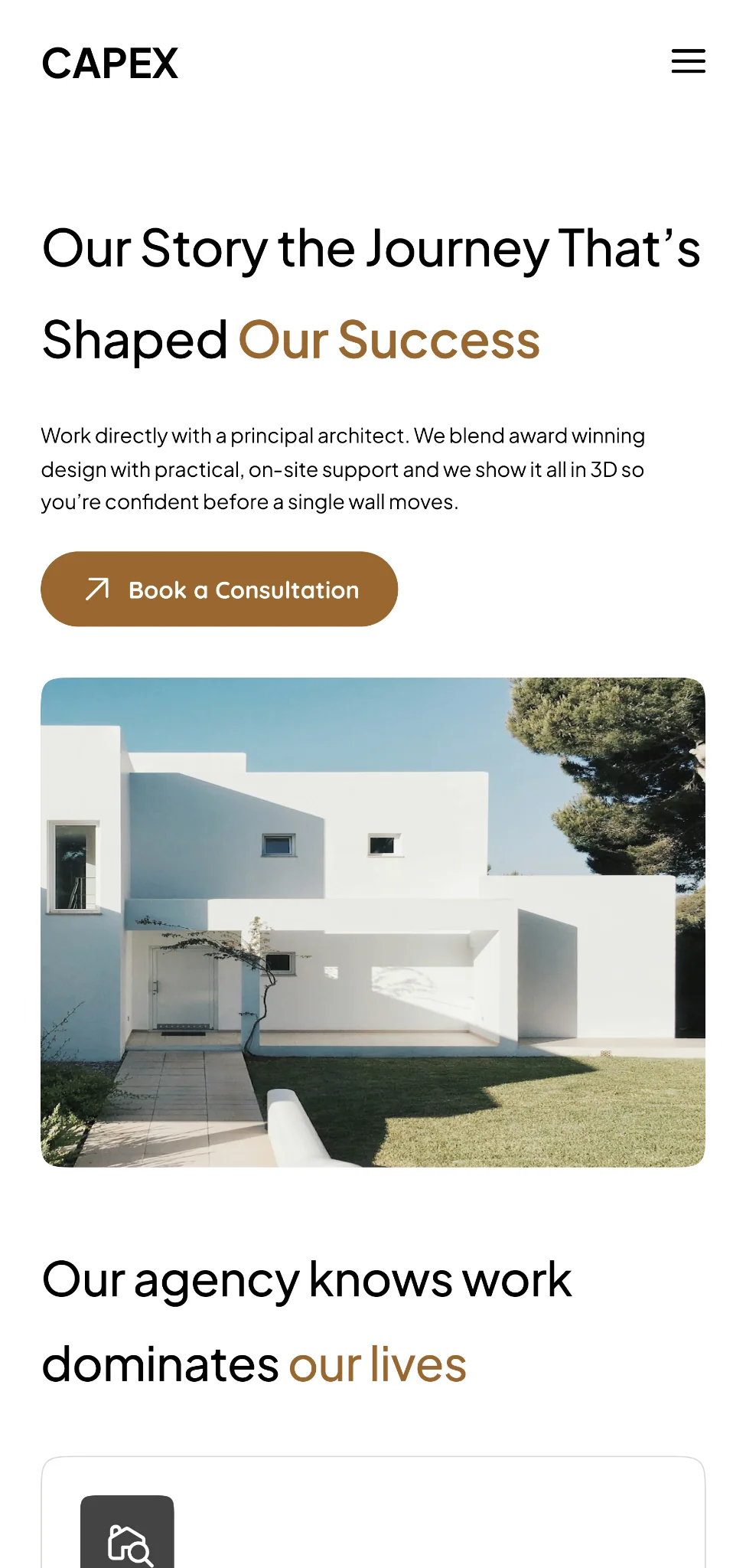
Pricing, company information and the gallery adapt to mobile with compact navigation, clear content hierarchy and vertically arranged content.
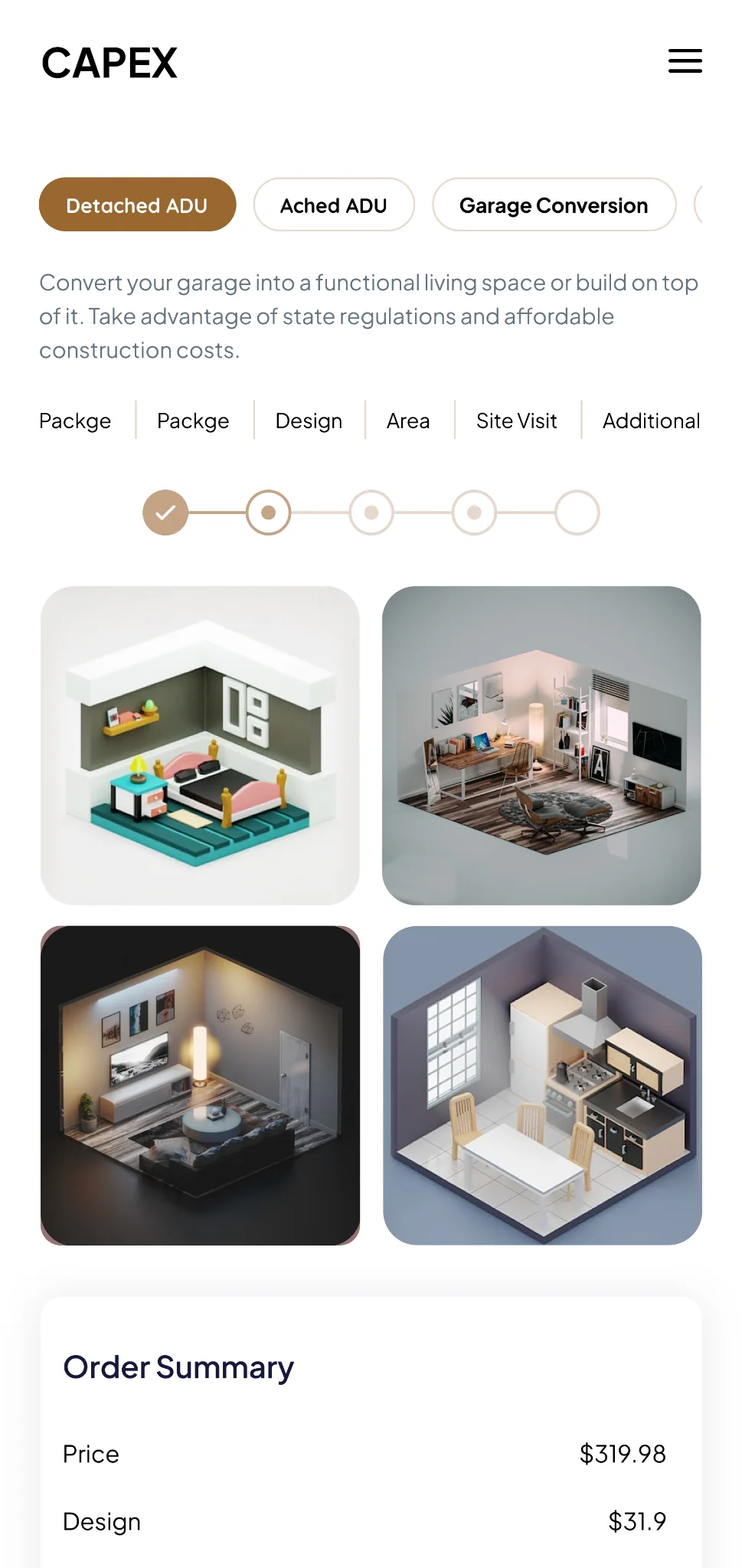
Pricing

Capex pricing mobile interface

Company

Capex company mobile interface

Gallery

Capex gallery mobile interface
06 / DESIGN SYSTEM

One foundation across discovery and planning.

The Essentials page defines shared colour, typography, spacing and component states. The case-study layout uses the portfolio system; Capex’s product visuals retain their own identity.

COLOUR VARIABLES

Semantic palette examples

Primary/600
#996830
Primary/300
#C4A386
Primary/100
#E6D8CC
Neutral/900
#2C2C2C
Neutral/700
#444444
Neutral/500
#7C7C7C
Neutral/300
#D9D9D6
TYPOGRAPHY VARIABLES

Type styles

Display / 48Plus Jakarta Sans — hero statements and high-emphasis headlines.
Heading / 38Plus Jakarta Sans — main section headings.
Title / 24Plus Jakarta Sans — cards and content groups.
Body / 20 & 14Plus Jakarta Sans — introductions and supporting content.
Label / 14Quicksand Bold action labels; semibold content labels.
Caption / 12Plus Jakarta Sans — metadata and supporting details.
CORE COMPONENTS

Reusable UI building blocks

Button

Default, hover and disabled variants provide a shared action hierarchy.

Nav item

Default, hover and active states keep page navigation consistent.

Text field

Default, focus and disabled states communicate form interaction.

Project card

Repeat imagery, project information and actions across browsing screens.

Open design system in Figma

07 / OUTCOME & NEXT STEPS

A connected planning experience.

The deliverables connect desktop and mobile screens, a structured planning flow and a reusable mini design system. The source material does not establish measured conversion or usability gains.

Next, test project-category selection, package comprehension and estimate review. Refine mobile image placeholders, duplicate stage labels and sample totals, then verify keyboard access, contrast and form feedback.

NEXT PROJECTCooter